


Sony BRAVIA 3D TVs were ahead of their time, delivering immersive cinematic experiences right in your living room. However, many owners discover that playing 3D movies from a USB drive or external hard drive is not as straightforward as they expected. Your Sony BRAVIA 3D TV may refuse to recognize the file, show only 2D playback, or display an error message about unsupported formats. The solution is a reliable 3D Video Converter for TV that can transform any 3D video into a format your Sony TV truly understands. In this guide, we will recommend the best tool – Acrok Video Converter Ultimate – explain why it outshines the competition, and walk you through the process step by step.
Understanding Sony TV USB Video Formats
Before converting, it helps to know which Sony TV USB video formats are officially supported on BRAVIA 3D models (such as the X900 series, S990, or HX series). Sony BRAVIA TVs typically support:
- Video containers: MP4, MKV, AVI, MOV, and M2TS
- Video codecs: H.264 (AVC), MPEG‑4, and sometimes H.265 (on newer models)
- Audio codecs: AAC, AC3 (Dolby Digital), LPCM, and MP3
- 3D formats: Side‑by‑side (SBS), top‑and‑bottom (TAB), and frame‑packed MVC (Blu‑ray 3D)
However, raw 3D files downloaded from the internet or ripped from Blu‑ray discs often come in formats that Sony BRAVIA cannot handle directly. For example, a Full SBS MKV with DTS audio may play video but no sound, or a frame‑packed MVC file may not be recognized at all. To ensure flawless playback, you need a TV Format Converter that can convert 3D format to Sony BRAVIA 3D TV supported format automatically.
The Best 3D Video Converter for Sony BRAVIA 3D TV
After testing numerous 3D conversion tools, one software stands out as the clear winner: Acrok Video Converter Ultimate. It is not only a powerful format converter for TV but also a dedicated 3D solution that handles both 3D‑to‑3D conversion and convert 2D to 3D functionality.
Why Acrok Video Converter Ultimate?
Here are the top reasons why Acrok is the best 3D Video Converter for TV for Sony BRAVIA owners:
1. Built‑in Sony BRAVIA 3D Presets
Acrok includes device‑specific presets for almost every TV brand, including Sony. Simply select “Sony BRAVIA 3D TV” from the output device list, and the software automatically chooses the optimal container (MP4), video codec (H.264), audio codec (AAC or AC3), and resolution (1080p or 4K). This eliminates guesswork and ensures your 3D file matches Sony TV USB video formats perfectly.
2. Converts Any 3D Format to Sony‑Compatible 3D
Acrok supports all popular 3D input formats:
- Side‑by‑Side (SBS) – half or full
- Top‑and‑Bottom (TAB) – half or full
- Anaglyph (red/cyan)
- Multi‑View Coding (MVC) – used in Blu‑ray 3D discs
It can convert 3D format to Sony BRAVIA 3D TV supported format by remuxing or re‑encoding the video into a clean MP4 with SBS or TAB (whichever your TV model prefers). You can also choose to keep the original 3D depth or adjust it.
3. Convert 2D to 3D – A Game Changer
Do you have a large library of regular 2D movies that you wish you could watch in 3D on your Sony BRAVIA? Acrok can convert 2D to 3D using advanced depth‑estimation algorithms. You can select from multiple 3D modes (SBS, TAB, Anaglyph) and adjust depth intensity. This feature alone makes Acrok the most versatile TV Format Converter for 3D enthusiasts.
4. Solves Audio Incompatibility
Most 3D movies come with DTS, DTS‑HD, or TrueHD audio tracks. Sony BRAVIA TVs do not decode these codecs when playing from USB. Acrok detects the audio track and lets you convert it to AAC or AC3 – both are standard Sony TV USB video formats for audio. You can even keep the original 3D video untouched while only re‑encoding the audio.
5. GPU Acceleration for Fast 3D Conversion
Converting 3D video (especially 1080p SBS or MVC) is resource‑intensive. Acrok leverages NVIDIA CUDA, AMD, and Intel Quick Sync to speed up encoding by up to 6×. A full 3D movie can be converted in 20–30 minutes instead of 2–3 hours.
6. Lossless Remux for Already Compatible 3D Files
If your 3D video already uses a supported codec (e.g., H.264) but is in a wrong container (MKV instead of MP4) or has unsupported audio, Acrok can remux the file in seconds. This preserves original 3D quality and saves enormous time.
7. Additional Editing Features for 3D Movies
- Trim – Remove unwanted sections from the start or end.
- Crop – Eliminate black bars for full‑screen 3D effect.
- Add subtitles – Hardcode 3D subtitles or import SRT files.
- Adjust 3D depth – Fine‑tune the stereoscopic effect.
8. Batch Conversion
Convert an entire folder of 3D movies to Sony BRAVIA‑friendly format with one click. Perfect for building a USB 3D library.
Step‑by‑Step Guide: Convert 3D Movies for Sony BRAVIA 3D TV USB Playback
Follow these simple steps to enjoy any 3D movie on your Sony BRAVIA TV:
1. Download and install Acrok Video Converter Ultimate from the official website (Windows or Mac).
2. Insert your USB drive (formatted as exFAT or NTFS – FAT32 cannot store files larger than 4GB).
3. Launch Acrok and click “Add Files” – load your 3D movie (SBS MKV, MVC folder, or any other 3D source).
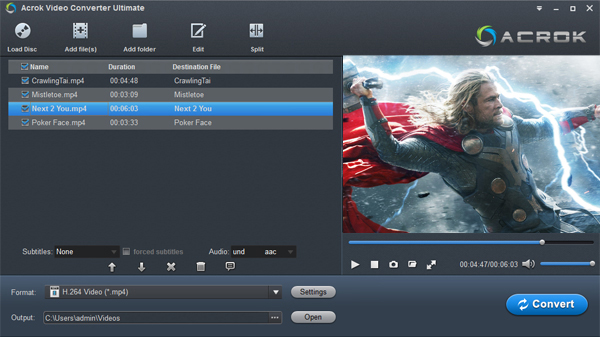
4. Choose the Sony BRAVIA 3D preset – Click the format drop‑down, go to “HDTV” > “Sony HDTV Video (*.mp4)”.

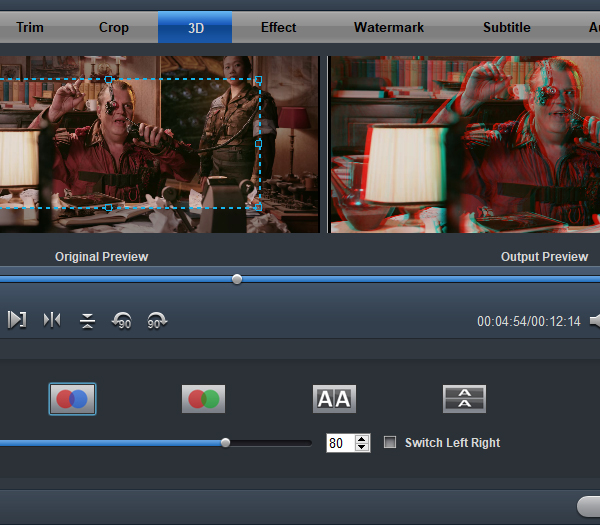
5. Set 3D parameters – For 3D‑to‑3D conversion, choose input 3D mode (SBS, TAB, etc.) and output 3D mode (usually SBS or TAB, depending on your TV). For converting 2D to 3D, select the desired output 3D style and depth level.
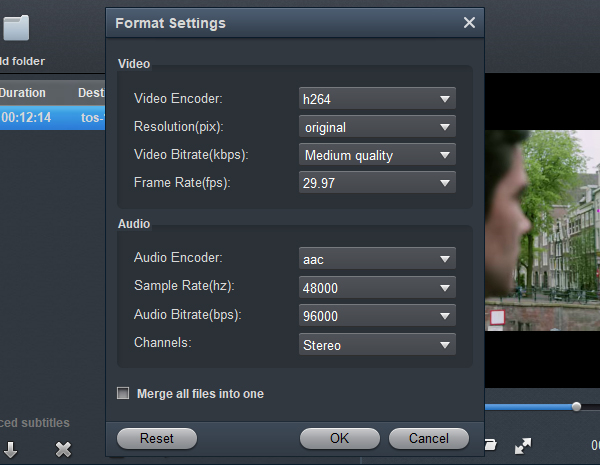
6. Adjust audio (optional) – Click “Settings” next to the output format, then set audio codec to AAC (stereo) or AC3 (5.1 surround).
7. Select output folder – You can convert to your computer first, then copy to USB.
8. Click “Convert” – Acrok will process the file using GPU acceleration.
9. Copy the output MP4 file to your USB drive.
10. Plug the USB drive into your Sony BRAVIA TV, navigate to “USB” input, and select the file. Put on your 3D glasses and enjoy!
Troubleshooting Common Sony BRAVIA 3D USB Issues
| Problem | Cause | Acrok Solution |
|---|---|---|
| File not recognized | Wrong container or codec | Remux or re‑encode to MP4/H.264 |
| Video plays in 2D only | 3D metadata missing | Set output 3D mode to SBS or TAB |
| No sound | DTS or TrueHD audio | Convert audio to AAC/AC3 |
| Subtitles not showing | Unsupported subtitle format | Hardcode subtitles into video |
| 3D effect looks wrong | Wrong input 3D mode selected | Correctly identify SBS vs. TAB |
Alternative Tools (Not Recommended for Sony BRAVIA 3D)
- HandBrake: Does not support 3D conversion at all. It treats 3D SBS files as flat 2D video.
- DVDFab: Good for 3D Blu‑ray but expensive and complex for simple USB conversion.
- Free online converters: Cannot handle large 3D files (often over 10GB) and lack Sony‑specific presets.
Acrok remains the only user‑friendly 3D Video Converter for TV that truly understands Sony BRAVIA’s requirements.
Final Verdict
If you own a Sony BRAVIA 3D TV and want to play 3D movies from USB or an external drive, you need a dedicated TV Format Converter that supports 3D input, handles audio conversion, and offers convert 2D to 3D as a bonus. Acrok Video Converter Ultimate delivers all of that and more. With its built‑in Sony presets, GPU acceleration, lossless remux, and batch processing, it is the ultimate format converter for TV for 3D content.
Stop struggling with unsupported formats. Download Acrok Video Converter Ultimate today and breathe new life into your Sony BRAVIA 3D TV – whether you’re watching native 3D blockbusters or converting your 2D home videos into stunning 3D.

No responses yet