


Use a TS Video Converter to convert TS to WMV on Windows 11. This guide highlights a reliable TS to WMV Converter and steps for smooth playback in Windows Media Player. Get the best Windows TS Converter for lossless quality.
TS (Transport Stream) is a common video format used for broadcasting, Blu-ray discs, and streaming downloads. However, it is not natively well supported by many Windows applications. While Windows Media Player may struggle to play TS files or fail to recognize them altogether, WMV (Windows Media Video) is a Microsoft‑native format that works flawlessly on all Windows versions, including Windows 11. If you have TS files from your screen recordings or downloaded from video sites and want to play them smoothly in Windows Media Player or edit them in Windows‑based software, converting TS to WMV is a wise choice. In this article, we will show you a quick and easy solution to encode TS files to WMV format on Windows 11.
Note: Windows Media Player can play only a few specific TS variants. Most common TS files – encoded with H.264 or MPEG‑2 and containing multiple audio/subtitle streams – are not properly recognized. That’s why a reliable TS Video Converter is necessary.
Get an Easy‑to‑use Tool to Convert TS to WMV on Windows 11
One versatile and easy solution is a dedicated desktop application that can transcode TS to WMV without quality loss. It should be your top option whenever you need a certain format for playback or editing. This decent video converter allows you to convert TS to WMV in three clicks while preserving the original quality.
Key Features of This TS to WMV Converter:
- Convert TS to WMV as well as other formats like MP4, MOV, AVI, MKV, HEVC, etc.
- Encode TS to WMV with high‑quality codecs – ensure perfect playback in Windows Media Player, Photos app, or any Windows‑based media player.
- Compress and shrink video files without any quality sacrifice.
- Offer optimized profiles for Windows 11, tablets, HDTV, game consoles, etc.
- Manually adjust codec, bitrate, frame rate, aspect ratio before conversion. Also includes a basic video editor to trim, crop, add watermarks or subtitles.
- Extract audio from TS files to MP3, AAC, etc.
For this tutorial, we recommend a professional tool – Acrok Video Converter Ultimate (any capable TS to WMV Converter works similarly). It is a powerful Windows TS Converter designed specifically for Windows 11/10/8/7.
3 Simple Steps to Convert TS to WMV on Windows 11
To begin with, download and install a reliable TS to WMV converter on your Windows 11 PC. The process described below applies to most desktop converters.
Step 1. Add TS Files
After installation, launch the converter. Simply drag and drop your TS files into the program window. You can also click “Add Files” to load your source videos. Batch conversion is supported, so you can load multiple TS files to save time.
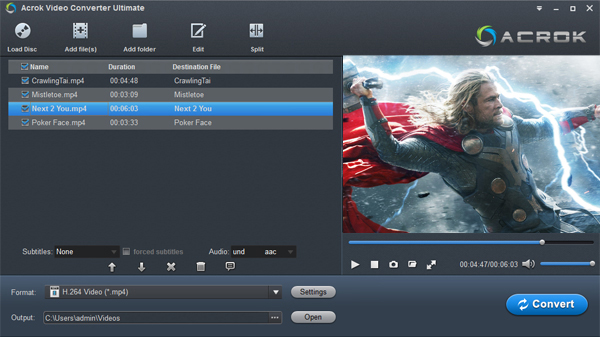
Step 2. Select WMV as Output Format
Click the format bar, move your mouse to the “Common Video” category (or “Windows Media” category), then select WMV (codec: wmv2 + wmav2) as the output format. If you need a specific bitrate or resolution for Windows Media Player, you can fine‑tune the settings by clicking the “Settings” button.
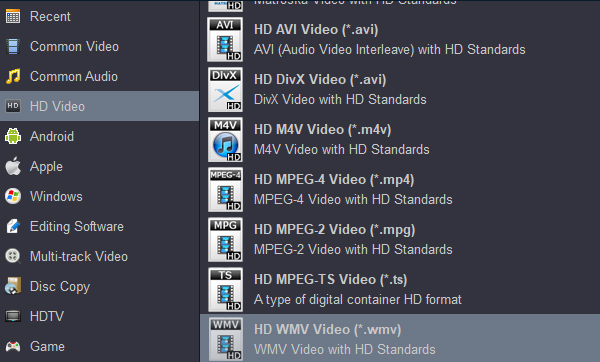
Step 3. Start the Conversion
Hit the “Convert” button. The software will begin fast decoding, conversion and processing of your TS video to WMV format on Windows 11. Once finished, you can find the WMV files in your output folder and play them directly in Windows Media Player without any compatibility issues.
Final Words
There are many online TS converters available. However, all online tools are internet‑dependent, have file size limitations, and often compromise quality or privacy. For basic or very small TS files, they may work. But for a lossless process to convert TS to WMV – especially if you need to handle large files or want advanced editing features – a professional desktop Windows TS Converter is the best choice. It gives you full control, no file size limits, and automatic saving to your local folders. Moreover, the output WMV files will be perfectly compatible with Windows Media Player on Windows 11, letting you enjoy your TS recordings without any hassle.

No responses yet