

Q1: I download some WMV files from internte, and plan to watch the WMV (Hamilton: I nationens interesse) movies on my HD through USB stick. I have copied the file to the stick and placed it into a folder. But the TV can’t read WMV files. An error message appears that says this is not supported. Who can tell me how to play WMV movies on TV?
Q2: My friend shared some downloaded movies with me. Some of them are in WMV format. The problem is that my Vizio TV cannot recognize the WMV movies on the USB drive. I’m sure the USB drive itself is not the issue, because the MP4 videos on the same drive are read successfully. Will simply renaming the file extension to .MP4 solve the problem?
So when you transfer a WMV file to an HDTV or Smart TV via USB, you need to ensure that both the video format and the video codec are supported. If your WMV video file cannot be played smoothly, you need to convert it to a video format with the video codec supported by your TV model as per your manual. If you do not want to check your manual, or your manual is lost, you can directly convert your video file to MP4 with H.264, which is supported by almost all TV models.
Solution: Convert WMV to TV supported video format- MP4.
Your TV can’t play WMV movies? Please don’t worry about this. Just simple three steps, you’ll watch WMV movies on all TVs (HD TV, Smart TV, LED TV, LCD TV).
To efficiently convert your WMV video file to TV what you need is a professional TV Converter, let’s say Acrok Video Converter Ultimate.
Why can Acrok Video Converter Ultimate help users solve the problem of video format incompatibility with TVs?
Acrok Video Converter Ultimate helps solve TV playback compatibility issues because it is more than just a simple format converter – it is a comprehensive solution.
It addresses the problem from several key aspects:
🎯 1. Solves the Core Issue: Matching the Correct Codec Within the Right Container
The root cause of a TV not playing a video is usually not the file extension (e.g., .wmv), but rather whether the internal video codec matches the TV’s decoder.
- Transcoding, not renaming: Acrok does not simply change the file extension. It performs deep transcoding, re-encoding the original video stream (e.g., from WMV, MKV) into a language the TV understands – such as an MP4 file with H.264 or H.265 encoding.
- Excellent format compatibility: It can read almost all common video formats (including MP4, MKV, WMV, AVI, MOV, MTS, etc.) as well as Blu-ray and DVD discs. Whether it’s an old RMVB file or a professional MXF file, it can handle it.
⚙️ 2. Professional Features: Provides Accurate and Efficient Conversion Options
- Extensive device presets: The software includes built‑in profiles covering major TV brands and models (Sony, Samsung, Vizio, etc.). Users don’t need to manually research their TV’s specifications – just select your TV brand, and the software automatically configures the optimal output format.
- Manual parameter tuning: For advanced users, it offers manual controls to precisely adjust video codec, resolution, bitrate, frame rate, etc., ensuring the best balance between quality and file size.
- GPU hardware acceleration: Supports NVIDIA CUDA and AMD hardware acceleration, significantly speeding up the conversion process – a 4K movie can be converted in much less time.
🌟 3. Added Value: More Than Just Conversion – A Video Toolkit
Acrok’s value goes beyond conversion, integrating useful features for fine‑tuning your video:
Subtitle handling: Easily embed external subtitles (.srt, .ass) permanently into the video, ensuring they display correctly on your TV.
Basic editing: Trim, crop, or adjust brightness/contrast to get the perfect framing and look for TV playback.
How to convert WMV format to a TV-supported format using Acrok software?
Step 1: Run the TV Format Converter on your PC, add WMV files into this program by click “Add Files”.
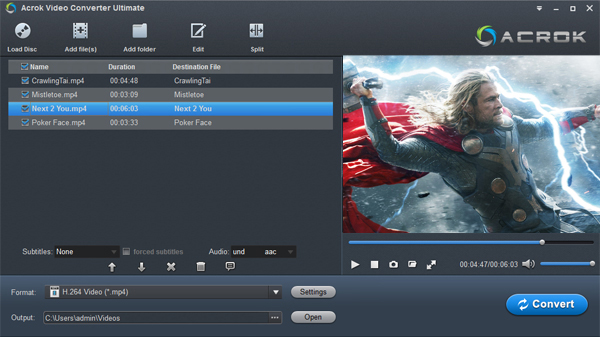
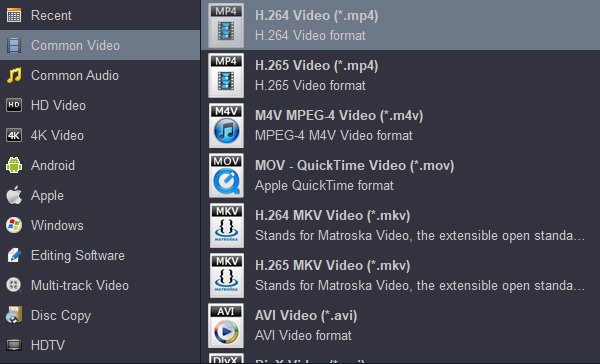
Step 2: Click “Format”column to choose “Common Video > MP4”. This is the best video format for TV. You will get a 1080P movies.
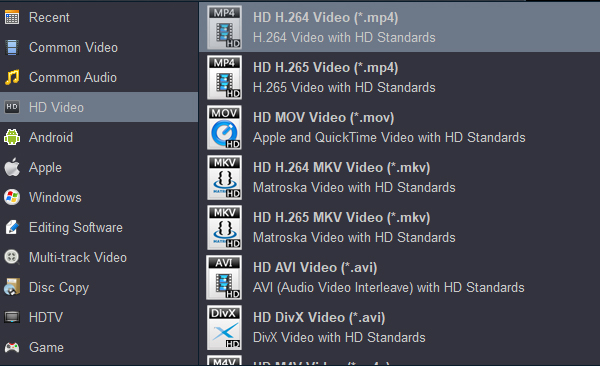
If you want to directly obtain a 1080p video, you can select MP4 as the output format under the HD Video category.If the original video resolution is low, doing so is meaningless. Moreover, don’t believe the online rumors about converting low‑resolution videos to 4K resolution.
Step 3: Click “Convert” button to start WMV to TV conversion.
When the conversion is done, click “Open” to find the converted WMV files. Now connect the USB stick to your computer and copy generated MP4 video to USB Flash Disk. Now, you can watch WMV movies on a USB flash drive on TV.
Tips about Acrok Video Converter Ultiamte
- 💿 Tip 1: Direct Blu-ray/DVD reading – It can easily import and process encrypted Blu-ray or DVD discs, ISO images, or folder files.
- 🔓 Tip 2: Bypasses major DRM protections – The software integrates a powerful decryption module that removes DRM protections from commercial discs, including AACS, BD+, BD-J, and region codes (RC), without needing extra plugins.
- ⚡ Tip 3: Hardware‑accelerated ripping & conversion – Supports GPU hardware acceleration technologies such as NVIDIA CUDA and AMD APP, making disc decryption and conversion much faster than conventional software.
- 💾 Tip 4: Multiple lossless backup options – You can either perform a “full disc copy” (clone to an ISO image) for physical backup, or directly extract the main movie to popular formats like MKV or MP4 while preserving multiple audio tracks and subtitles.
- 🛠️ Tip 5: Seamlessly integrated video editing – Before decrypting and converting, you can edit the source video directly – trimming, cropping, adding watermarks, etc. – all in one smooth workflow.
- 📺 Tip 6: TV playback presets – For playing the converted video on a TV, you can directly select built‑in presets for smart TVs such as Samsung, LG, Vizio, etc., ensuring output format compatibility.

No responses yet