

Wondering how to play AVI on Android phones without conversion errors or format issues? Short answer: use VLC for Android if you want free direct playback inside a player app, or use Acrok Video Converter Ultimate to convert and transfer the video so it opens in your phone’s native gallery app. In this guide, we’ll show you three reliable methods to play AVI files on Android phones.
Can Android Play AVI Files Natively?
Android does not handle AVI as a normal native video format. Google lists native playback around Android-friendly formats and codecs in its official media documentation, while AVI is a container often used for movies, multiple audio tracks, subtitles, and chapters. The most common format that is natively supported across all Android devices is MP4 with H.264 video encoding and AAC audio encoding.
Android Video Formats: AVI vs MP4 vs MKV
The practical difference is simple: MP4 and MKV are the safe native paths. AVI usually needs either a player app or a conversion step.
| Format | Native Android Playback | Best Use | Main Limitation |
|---|---|---|---|
| AVI | No | Older video collections, DivX/Xvid content | Needs VLC, conversion app, or third‑party player |
| MP4 | Yes | General Android phone and tablet playback | Less flexible for subtitle and multi‑track setups |
| MKV | Yes (Android 5.0+) | Movies with subtitles, chapters, or multiple audio tracks | Larger file sizes |
AVI is a container, not a video codec. One AVI file may contain H.264 video that is easy to convert, while another may contain DivX or Xvid video that needs extra handling.
Method 1. How to Play AVI on Android with Acrok Video Converter Ultimate
Use Acrok Video Converter Ultimate when you want the AVI to behave like a normal Android video. It runs on Windows and Mac, takes the local AVI file, handles the Android-compatible conversion, and produces a file that you can transfer to your Android phone or tablet without worrying about codec issues.
Acrok Video Converter Ultimate is a professional audio and video format conversion tool that supports converting between various video file types including AVI, MP4, AAC, WAV, and others. It supports a multitude of formats and allows you to convert your videos to MP4, AVI, MOV, M4V, and more.
Why Acrok Video Converter Ultimate Is the Clean Native-App Option
VLC is great if you are fine watching inside VLC. Acrok Video Converter Ultimate is better when you want the video in Android’s native gallery/Photos flow and don’t want to teach a family member which app to open. With Acrok Video Converter Ultimate, you drag the AVI into the app, choose your output settings, and let the software handle the conversion.
Beyond basic conversion, Acrok Video Converter Ultimate provides powerful video editing functions like Trim, Crop, Effect, 3D, Watermark, Audio and Subtitles. You can trim your favorite part from the video, crop the video frame and adjust aspect ratio, or fine-tune video brightness, saturation, contrast, hue, and volume.
Steps to Play AVI on Android with Acrok Video Converter Ultimate
Step 1: Install Acrok Video Converter Ultimate on Windows or Mac
Download Acrok Video Converter Ultimate from the official website, install it on your Windows PC or Mac, then open the app. Acrok is the right fit when the AVI file is already on your computer and you want to convert it for your Android phone or tablet in one workflow.
Step 2: Add Your AVI File
Click “Add File” or drag and drop your AVI video(s) into the program. The software supports batch conversion, so you can process multiple files at once.
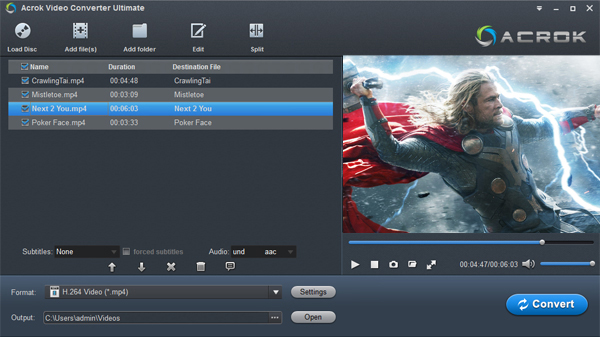
Step 3: Choose Output Format
Select MP4 as the output format. For the best compatibility across all Android devices (phones, tablets, and even Android TV), choose the H.264 codec preset. MP4 with H.264 video and AAC audio is universally supported on all Android platforms. If you have a specific device, Acrok also provides device‑specific presets (e.g., for Samsung Galaxy, Google Pixel, etc.).
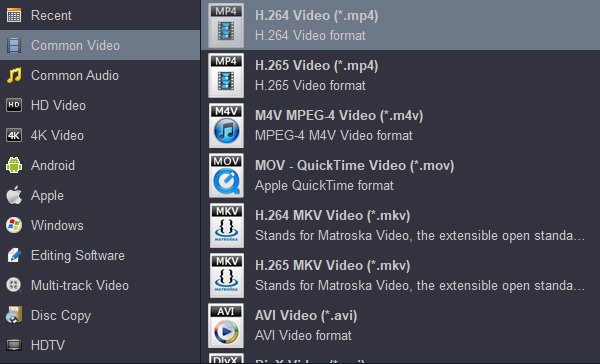
Step 4: Customize Output Settings (Optional)
Click the “Settings” button to adjust video resolution, bitrate, frame rate, or audio parameters. For most Android phones, 1920×1080 (Full HD) or 1280×720 (HD) is recommended.
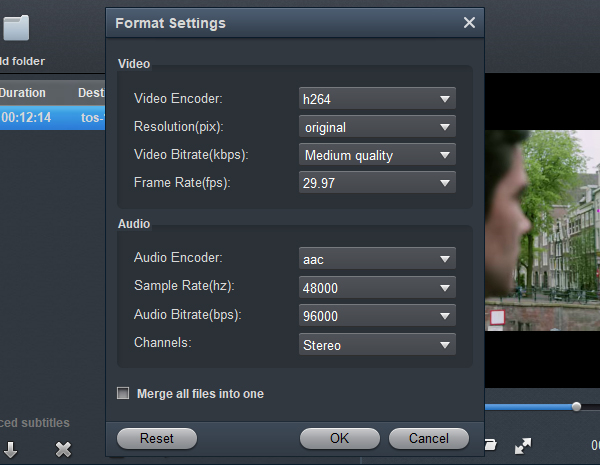
Step 5: Edit the Video (If Needed)
Use the built‑in editing tools to trim unwanted sections, crop the video frame, adjust brightness/contrast, add watermarks, or include subtitle tracks before conversion.
Step 6: Start Conversion
Choose your output folder and click “Convert” (or “Convert All” for batch). The software uses hardware acceleration to ensure fast conversion speeds while preserving original quality.
Step 7: Transfer to Android
After conversion, copy the MP4 files to your Android phone or tablet via USB cable, cloud storage (Google Drive, Dropbox), or SD card. You can now play them seamlessly with the native gallery app or any standard media player.
A regular converter only creates an MP4. You still have to move that file to your Android device. Acrok gives you a high‑quality output that works immediately with your phone’s native player.
Method 2. How to Play AVI on Android with VLC for Android
Use VLC for Android if you want the free answer and you are fine watching inside a third‑party app. VLC for Android can play any video and audio files, as well as network streams, network shares and drives, just like the desktop version of VLC. It supports all formats including MKV, MP4, AVI, MOV, Ogg, FLAC, TS, M2TS, Wv and AAC. All codecs are built‑in with no separate downloads required. When your video won’t be opened with the default media player because of the codec problem, VLC for Android is the go‑to solution.
Steps to Play AVI on Android Using VLC for Android
Step 1: Install VLC for Android
Install VLC from the Google Play Store. It is the most common free AVI player for Android, and it is a good choice for both occasional and regular playback.
Step 2: Move the AVI File to Your Android Device
VLC cannot play a file it cannot access. Move the AVI into your device’s internal storage, SD card, or into a location VLC can access, such as the Downloads folder, Google Drive, Dropbox, OneDrive, or a local network share.
Transfer methods:
- USB cable: Connect your Android phone to a computer and copy the AVI file directly
- Cloud storage: Upload to Google Drive or Dropbox, then download on your phone
- Wi‑Fi transfer: Use apps like Send Anywhere or a local FTP server
- SD card: Copy the AVI file to an SD card and insert it into your device
Step 3: Open the AVI in VLC
Open VLC for Android, find the video in the file browser, and tap it. If the file uses subtitles or multiple audio tracks, check VLC’s playback controls for track choices. VLC supports subtitle tracks, multiple audio tracks, and network options, making it a versatile player for all your AVI content.
Method 3. Other AVI Player Apps for Android
VLC is not the only Android AVI player. If you need a different interface or additional features, these alternatives are also worth trying:
- VLC for Android: Best free starting point for direct AVI playback (and our top recommendation in Method 2)
- Video Player All Format – Arc Player: A feature‑rich media player for Android that supports all video formats including MKV, MP4, MOV, FLV, AVI, 3GP, RMVB, M4V, WAV, WMV, TS and more. It offers HD video playback and a private folder to hide personal videos.
- Video Player HD – All Formats (VIDFO): Supports all video formats from MP4, MKV, AVI, and more, with a private folder feature and high resolution playback.
- OPlayer Lite: An AVI player, MKV player, DVD player, and FLV player that supports almost all video formats, such as MP4, M4V, MOV, 3GP, FLV, WMV, RMVB, TS, etc.. Works on both Android tablets and Android phones.
- PlayerXtreme Media Player: Supports all file types including hi‑fi music and video formats. MKV, MP4, AVI, WMV, MOV and 40+ formats are supported.
- Video Player All Format – Mixx Player: A professional video and music playback tool for Android phones and tablets, with all video formats supported and private video protection.
- Mini Player – All Video Player: Supports ALL video formats, including MKV, MP4, M4V, AVI, MOV, 3GP, FLV, WMV, RMVB, TS, etc., and is optimized for both Android tablets and phones.
- Night Video Player – voice amp: Plays all video formats: MKV, MP4, AVI, MOV, FLV, TS, M2TS, WebM, VMW, MX, HLS, 3GP & more, with enhanced voice and picture quality.
What About Online Converters?
Avoid online converters for private or large movie files. They can be slow, they add an extra upload/download step, and they raise privacy concerns. If you choose to convert your AVI file, a local desktop solution like Acrok Video Converter Ultimate or a dedicated Android conversion app is always safer and faster.
Summary
You have three reliable ways to play AVI format on Android phones and tablets:
| Method | Pros | Best for |
|---|---|---|
| Acrok Video Converter Ultimate | Native gallery app support; smaller file size; highest compatibility; no need to install extra players | Users who want a clean, unified library and prefer using the system player |
| VLC for Android | Free; no conversion needed; one app solves all format problems; built‑in codecs | Users who want a quick, hassle‑free solution and don’t mind using a different player |
| Alternative video players | Different interfaces; additional features like private folders or floating windows | Users who want more customization or specialized features |
If you want the smoothest experience with the native Android gallery player, Acrok Video Converter Ultimate is your best choice — it converts AVI to MP4 quickly while preserving quality. If you prefer not to convert, simply install VLC for Android and start playing AVI files immediately.
Whichever method you choose, playing AVI on your Android phone is straightforward and hassle‑free. Happy watching!
Tags: play avi video on anroid, watch avi files on android phones, convert avi to android format, play avi movies on android tv

No responses yet