


Have you ever downloaded a movie, copied it to a USB drive, plugged it into your Panasonic TV, and seen nothing but an error message? You are not alone. Many Panasonic TV owners face the same frustration: the TV either says “unsupported file format” or plays video without sound. The good news is that this problem has a simple solution. In this guide, we will answer the question Which Video Formats Does Panasonic TV Support, explain why your movies may not play, and show you how to use a reliable Format Converter for Panasonic TV to fix everything. We strongly recommend Acrok Video Converter Ultimate as the best TV Format Converter for the job. Consider this your Complete Guide: Play Any Video on Panasonic LED/LCD/3D TV.
Why Panasonic TVs Refuse to Play Some Videos from USB
Panasonic manufactures excellent LED, LCD, and plasma (including older 3D models) televisions. However, like all TV brands, Panasonic’s built‑in USB media player has limited codec support. Even if a video file has a .mp4 or .mkv extension, the internal video or audio codec might be incompatible. Common causes include:
- Unsupported video codec – Your movie uses H.265 (HEVC) but your Panasonic TV only supports H.264.
- Unsupported audio codec – The file contains DTS, DTS‑HD, or TrueHD audio, which Panasonic TVs cannot decode from USB.
- Wrong container – The file is in AVI or FLV, while Panasonic prefers MP4 or MKV.
- High bitrate or profile – Some 4K files exceed the TV’s decoding limits.
- Resolution mismatch – The video resolution is not standard (e.g., odd aspect ratios).
To play movies on Panasonic TV from USB without headaches, you need to understand which formats are actually supported – and then convert your files accordingly.
Which Video Formats Does Panasonic TV Support? (Complete List)
Panasonic TV support varies by model year and series (e.g., Viera, GZ series, HX series, JX series, LZ series, or the latest MZ series). Below is a general compatibility list based on common Panasonic LED/LCD/3D TVs produced from 2015 onward. For older 3D models (e.g., VT60, ZT60), the list is similar but with less support for H.265.
Container (File Extension) Support
| Container | Support Level |
|---|---|
| MP4 (.mp4) | Best – universally supported |
| MKV (.mkv) | Good – most models support, but check audio |
| MOV (.mov) | Fair – limited support on older models |
| AVI (.avi) | Poor – MPEG‑4 video may work, but unreliable |
| FLV, WMV, VOB | Not recommended – rarely supported |
Video Codec Support
| Codec | Typical Support |
|---|---|
| H.264 (AVC) | Excellent – all Panasonic Smart TVs |
| H.265 (HEVC) | Good – on 4K models from 2016 onward; not on Full HD or older 3D TVs |
| MPEG‑4 (ASP) | Fair – older models only |
| VP9 | Limited – only newer models with YouTube 4K |
| MPEG‑2 | Good – for DVD rips, but container must be MP4/MKV |
Audio Codec Support
| Codec | Support Level |
|---|---|
| AAC | Best – all Panasonic TVs |
| AC3 (Dolby Digital) | Good – most models |
| MP3 | Good – for simple audio tracks |
| DTS / DTS‑HD | None – Panasonic TVs do not decode DTS from USB |
| TrueHD | None – not supported |
| LPCM | Fair – may work but unreliable |
The Panasonic TV Best Playback Video Format
Based on the above, the Panasonic TV best playback video format for guaranteed success is:
- Container: MP4
- Video Codec: H.264 (AVC) – Main or High Profile, Level 4.1
- Audio Codec: AAC (stereo or 5.1) or AC3 (Dolby Digital)
- Resolution: Up to 1920×1080 (for Full HD models) or 3840×2160 (for 4K models)
- Frame Rate: 24, 25, or 30 fps
- Bitrate: Below 20 Mbps for smooth USB playback
If you stick to MP4 + H.264 + AAC, your video will play on virtually any Panasonic TV manufactured in the last decade, including LED, LCD, and older 3D models.
Why Most Downloaded Movies Fail to Play
You download a movie in MKV format. The video is H.265 (to save space) and the audio is DTS 5.1. When you copy this file to a USB drive and plug it into your Panasonic TV, one of three things happens:
- No video – The TV does not recognise H.265.
- No sound – The TV cannot decode DTS.
- No playback at all – The container or combination of codecs confuses the TV.
To solve this, you need to convert video to Panasonic TV supported format – specifically, change H.265 to H.264 (or keep H.265 only if your TV supports it) and convert DTS to AAC or AC3.
Recommended Software: Acrok Video Converter Ultimate
After testing dozens of video converters on multiple Panasonic TV models (from older 3D Viera to the latest 4K OLED), we strongly recommend Acrok Video Converter Ultimate as the best Format Converter for Panasonic TV. It is also a complete TV Format Converter that handles any video conversion task.
Why Acrok Video Converter Ultimate?
Acrok stands out for its combination of Panasonic‑specific presets, audio conversion capabilities, GPU acceleration, and ease of use. Here are the detailed reasons.
1. Built‑in Panasonic TV Presets
Acrok includes device‑specific output profiles for hundreds of TV models, including Panasonic. To convert a video for your Panasonic TV, simply:
- Click the “Format” drop‑down menu
- Navigate to “Device” > “Panasonic”
- Select your specific Panasonic TV series (e.g., “Panasonic Viera 4K TV”, “Panasonic LED/LCD TV”, or “Panasonic 3D TV”)
Acrok automatically sets the optimal container (MP4), video codec (H.264 or H.265 depending on your model), audio codec (AAC), resolution, and bitrate. This makes it a true format converter for Panasonic TV that removes all guesswork.
2. Converts DTS Audio to AAC or AC3
This is a critical feature. Many downloaded movies have DTS audio, which Panasonic TVs cannot play. Acrok detects the audio stream and lets you convert it to AAC (universally supported) or AC3 (Dolby Digital 5.1). You can even keep the original video untouched and only re‑encode the audio – saving massive time.
3. Handles Both H.265 and H.264
If your Panasonic TV is a 4K model from 2016 or later, it likely supports H.265 (HEVC). Acrok can keep the video as H.265 and simply repackage it into a compatible MP4 container. If your TV is a Full HD or older 3D model that does not support H.265, Acrok can convert H.265 to H.264 while preserving excellent quality.
4. GPU Acceleration for Fast Conversion
Converting high‑resolution video can be slow. Acrok leverages NVIDIA CUDA, AMD, and Intel Quick Sync to speed up encoding by up to 6×. A 2‑hour movie can be converted in 15–20 minutes instead of 2 hours.
5. Solves Container and Subtitle Issues
Acrok can remux (repack) MKV, MOV, or AVI files into MP4 without re‑encoding the video if the codecs are already compatible. This is lossless and extremely fast. It also handles subtitles: you can hardcode PGS or SRT subtitles into the video or keep them as a separate track.
6. Batch Conversion and Basic Editing
- Batch convert multiple movies for your Panasonic TV in one go.
- Trim unwanted sections (opening logos, end credits).
- Crop black bars for full‑screen playback.
- Adjust volume – boost quiet audio tracks.
7. Works with USB Drives of Any Size
Acrok outputs MP4 files that are compatible with USB drives formatted as exFAT or NTFS. No 4GB file size limit (unlike FAT32).
Step‑by‑Step Guide: Convert Any Video for Panasonic TV USB Playback
Follow these steps to play movies on Panasonic TV from USB without any errors.
What You Need
- A computer (Windows or Mac) with Acrok Video Converter Ultimate installed
- Your downloaded movie file (MKV, AVI, MOV, etc.)
- A USB flash drive or external hard drive formatted as exFAT or NTFS
Step 1 – Load Your Video
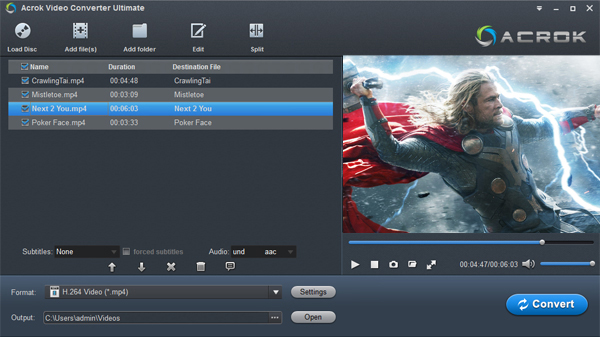
Launch Acrok Video Converter Ultimate. Click “Add Files” and select your movie file.
Step 2 – Choose Panasonic TV Output Format
Click the “Format” drop‑down menu. Navigate to HDTV> Panasonic and select the preset that matches your TV.
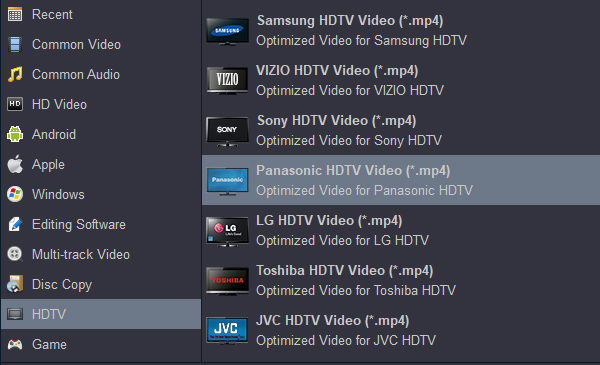
- For most Panasonic LED/LCD TVs (including older 3D models), choose “Panasonic LED/LCD TV (MP4, H.264 + AAC)”
- For Panasonic 4K TVs (2016 and later), you can choose “Panasonic 4K TV (H.265 + AAC)” if the original video is also H.265, or stick with H.264 for broader compatibility
If you are unsure about your model, simply choose Format > MP4 > H.264 + AAC – this matches the Panasonic TV best playback video format for universal compatibility.
Step 3 – Adjust Audio Settings (Important)
Click the “Settings” button next to the output format. Under “Audio”:
- Set encoder to AAC (stereo or 5.1). If you prefer surround sound and your Panasonic TV supports it, you can choose AC3 (Dolby Digital).
- For files with DTS audio, Acrok will automatically convert to your selected format.
Step 4 – Optional: Adjust Video and Subtitles
- If you want to hardcode subtitles, go to the “Subtitle” tab, select your subtitle file or track, and check “Hardcode”.
- You can also trim, crop, or adjust video parameters from the editing toolbar.
Step 5 – Select Output Folder
Choose a destination folder on your computer. A typical 90‑minute movie will produce an MP4 file of 1–3 GB.
Step 6 – Start Conversion
Click “Convert”. Acrok will process the file using GPU acceleration. Once finished, you will have a Panasonic‑friendly MP4 file.
Step 7 – Copy to USB and Enjoy
Copy the converted MP4 file to your USB drive. Safely eject the USB, plug it into your Panasonic TV’s USB port. Open the media player (usually via “Home” > “Media Player” or “USB”), navigate to your file, and press play.
Troubleshooting Common Issues on Panasonic TV
| Symptom | Likely Cause | Acrok Solution |
|---|---|---|
| “File not supported” | Wrong container or codec | Convert to MP4 + H.264 + AAC |
| Video plays, no sound | DTS or TrueHD audio | Convert audio to AAC or AC3 |
| Video stutters or lags | Bitrate too high | Lower bitrate in Acrok settings (e.g., 10 Mbps) |
| No subtitles | Unsupported PGS subtitles | Hardcode subtitles during conversion |
| 4K movie won’t play | TV does not support H.265 | Convert H.265 to H.264 (choose H.264 output) |
| Only a few minutes play | Incomplete file or corruption | Re‑download or repair, then reconvert |
Why Not Use Free Tools?
You might consider free converters like HandBrake, VLC, or online websites. However, they have major limitations for Panasonic TV users:
- HandBrake – No Panasonic‑specific presets. You must manually research and enter codec, level, and audio settings. It also cannot convert DTS to AAC without additional libraries.
- VLC – Very slow conversion, limited batch processing, and often produces audio sync issues.
- Online converters – Cannot handle large movie files (over 1GB), slow upload/download, privacy risks, and no control over audio codecs.
Acrok eliminates all these problems with one‑click Panasonic presets, GPU acceleration, and reliable DTS‑to‑AAC conversion. For anyone who regularly wants to play movies on Panasonic TV from USB, Acrok is the best investment.
Final Verdict
Now you have the answer to Which Video Formats Does Panasonic TV Support? (Complete List) – and more importantly, a practical solution to convert any video into the Panasonic TV best playback video format (MP4, H.264, AAC). With Acrok Video Converter Ultimate, you have a powerful Format Converter for Panasonic TV that handles decryption (for DVDs), audio conversion, subtitle embedding, and GPU‑accelerated encoding. It is the ultimate TV Format Converter and the most reliable format converter for Panasonic TV to convert video to Panasonic TV supported format effortlessly.
Stop wasting time trying different encoding settings or renaming file extensions. Download Acrok Video Converter Ultimate today and enjoy your entire movie collection on your Panasonic LED, LCD, or 3D TV – directly from a USB drive.

No responses yet