


Do you still have a box of DVD movies collecting dust in your closet? Maybe you have ripped all those discs to your computer years ago, saved as DVD ISO/IFO files or DVD folder backups, but you cannot figure out how to play them on your new Smart TV. Your Smart TV likely does not even have a DVD drive. Does this mean you have to keep using an old DVD player forever? Absolutely not.
The solution is simpler than you think. With the right DVD Ripper for Smart TV, you can convert your DVD discs, ISO files, IFO files, and DVD folders into a digital format that your Smart TV will play directly from a USB flash drive. In this guide, we will explain the Smart TV best playback video format, why most DVDs cannot play natively on Smart TVs, and why Acrok Video Converter Ultimate is the ultimate TV Format Converter for this job.
Why Smart TVs Cannot Play DVDs Directly from USB
There are two fundamental reasons why plugging a DVD into a Smart TV is not an option, and even your backed‑up DVD files will probably fail.
Reason 1 – No DVD Drive. Most modern Smart TVs are extremely thin and do not include physical optical disc drives. Even if you insert a USB drive containing a VIDEO_TS folder (the raw DVD structure), your TV‘s media player will not understand how to navigate the menus or play the main movie correctly.
Reason 2 – Format Incompatibility. Commercial DVDs are encrypted with CSS (Content Scramble System) and sometimes additional protections like Sony ARccOS or region codes. Standard DVD folders or ISO files preserve these protections. Your Smart TV‘s built‑in media player cannot decrypt these protections, so it will either show an error or play nothing at all.
Therefore, you need a tool that can decrypt the DVD, extract the main movie, and convert it into the best video format supported by TV for reliable USB playback.
The Best Video Format for Smart TV USB Playback
After extensive testing across Samsung, Sony, LG, TCL, Hisense, and other major brands, the Smart TV best playback video format is the following combination:
- Container: MP4 (over 95% of all Smart TVs support MP4 natively)
- Video Codec: H.264 (AVC) – Level 4.2 to 5.1
- Audio Codec: AAC (with sample rate 48kHz)
- Resolution: Up to 1920×1080 (standard DVD resolution)
- Bitrate: 12–18 Mbps for smooth playback
Why this combination? H.264 is the most universally supported codec across all TV brands and models, unlike H.265 which is only compatible with newer 4K TVs. AAC audio works on virtually every Smart TV, while formats like DTS often fail silently. MP4 is a straightforward container that does not confuse TV media players.
Some newer 4K Smart TVs also support MKV and H.265, but MP4 with H.264 + AAC remains the safest, most compatible choice. If you want a single format that will play on any Smart TV ever made, this is it.
Recommended Software: Acrok Video Converter Ultimate
After testing multiple DVD conversion tools, we strongly recommend Acrok Video Converter Ultimate as the best DVD Ripper for Smart TV and the most reliable TV Format Converter on the market.
Why Acrok Video Converter Ultimate?
1. Handles Every DVD Source – Disc, ISO, IFO, and Folder
Acrok supports all possible DVD sources. Whether you have an original DVD disc in your drive, a DVD ISO file stored on your computer, an IFO file, or a complete DVD folder (VIDEO_TS), Acrok can load and process it. The official documentation confirms: “it supports DVD disc, DVD ISO/IFO file, DVD folder, Blu‑ray disc, Blu‑ray ISO and folder files”. This makes it a true format converter for TV that works with both physical and digital DVD backups.
2. Built‑in Decryption – Removes CSS and Other Protections
Commercial DVDs are encrypted with CSS copy protection. Many free converters cannot handle these discs. Acrok includes powerful decryption capabilities that remove CSS, region codes, and other protections automatically in the background, allowing you to rip any DVD regardless of its origin or region.
3. Smart TV Presets – One‑Click Compatibility
Acrok includes hundreds of device‑specific presets. For Smart TV playback, you can simply select your TV brand (Samsung, Sony, LG, Panasonic, Vizio, etc.) from the “Device” menu. The software will automatically set the correct container (MP4), video codec (H.264), audio codec (AAC), resolution, and bitrate to match the Smart TV best playback video format for your specific model. No manual tweaking required.
4. Convert DVD to MP4 – The Universal TV Format
Acrok makes it effortless to convert DVD to Smart TV supported format. With just a few clicks, your DVD movie becomes a clean MP4 file with H.264 video and AAC audio. This file will play on any Smart TV via USB, as well as on computers, tablets, and smartphones.
5. Lossless Backup Option
If you want to preserve the original DVD quality without re‑encoding, Acrok supports lossless backup. You can create an exact copy of your DVD as a folder saved on your computer or hard disk drive, keeping the original file structure with multiple audio streams and subtitles. This is perfect for archival purposes before converting a playback‑friendly version for your TV.
6. GPU Acceleration for Fast Conversion
Converting a full DVD (typically 4–7 GB) can take time. Acrok leverages NVIDIA CUDA, AMD, and Intel Quick Sync to speed up encoding by up to 6×. A complete DVD movie can be converted to MP4 in 10–15 minutes instead of an hour.
7. Built‑in Video Editing Tools
Acrok is not just a converter – it is also a video editor. Before converting, you can:
- Trim – Remove opening FBI warnings or end credits.
- Crop – Cut off black bars for full‑screen playback.
- Add watermarks – Personalize your videos.
- Adjust effects – Modify brightness, contrast, and saturation.
- Hardcode subtitles – Permanently embed subtitles into the video.
8. Also Plays DVDs Directly
Acrok Video Converter Ultimate doubles as a media player. After loading a DVD disc or ISO file, you can click the “Play” button to watch the DVD directly on your computer without conversion – a handy feature for previewing content.
Step‑by‑Step Guide: Convert DVD to USB for Smart TV
Follow these simple steps to play any DVD movie on your Smart TV via USB flash drive.
What You Need
- A computer with a DVD drive (for physical discs) OR DVD ISO/IFO/folder files on your hard drive
- Acrok Video Converter Ultimate installed (Windows or Mac)
- A USB flash drive formatted as exFAT or NTFS (FAT32 cannot store files larger than 4GB)
Step 1 – Load Your DVD Source
Launch Acrok Video Converter Ultimate. Click the “Add Files” button.
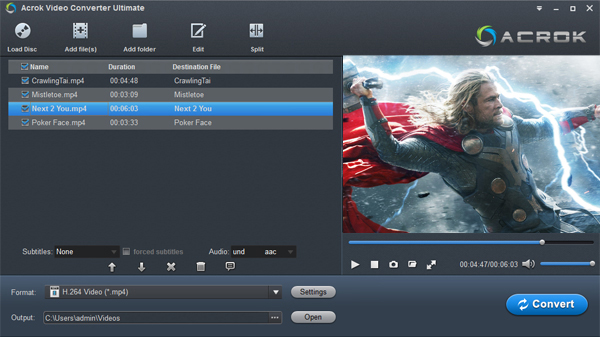
- For DVD disc: Insert the DVD into your DVD drive and select your DVD drive as the source.
- For DVD ISO/IFO: Browse and select the ISO or IFO file on your computer.
- For DVD folder: Select the VIDEO_TS folder or the folder containing DVD files.
Acrok will scan the source and display the available titles. Most DVDs have the main movie as the longest title – Acrok will identify it automatically.
Step 2 – Choose Your Smart TV Output Format
Click the “Format” drop‑down menu. Navigate to Device > Your TV Brand (Samsung, Sony, LG, Panasonic, etc.), then select your TV type. For example:
- “Samsung Smart TV (MP4, H.264 + AAC)”
- “Sony Bravia TV (MP4, H.264 + AAC)”
- “LG Smart TV (MP4, H.264 + AAC)”
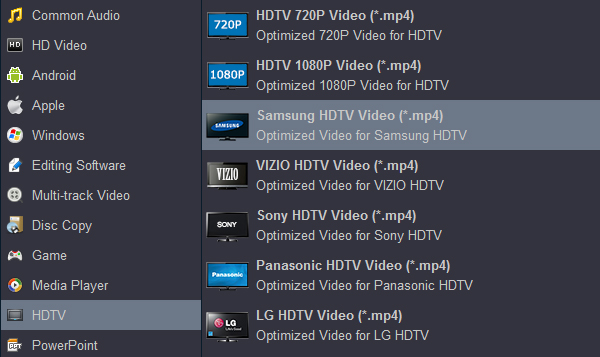
If your TV brand is not listed, simply choose Format > MP4 > H.264 + AAC – this is the best video format supported by TV for universal compatibility.
Step 3 – Adjust Settings (Optional)
Click the “Settings” button next to the output format. You can adjust:
- Video encoder: H.264 is the safest choice for Smart TV playback
- Resolution: Keep at “original” (DVD is 720×480 or 720×576)
- Audio encoder: AAC (48kHz, stereo or 5.1 depending on your preference)
- Bitrate: 12–18 Mbps for DVD quality; lower for smaller file sizes
Step 4 – Select Destination Folder
In the “Output” menu, choose a folder on your computer to save the converted file. A standard DVD movie will produce an MP4 file approximately 1–2 GB in size.
Step 5 – Start Conversion
Click the “Convert” button. Acrok will decrypt the DVD (if needed), extract the main movie, and encode it into MP4 using GPU acceleration for fast results.
Step 6 – Copy to USB and Enjoy
Once conversion is complete, copy the MP4 file to your USB flash drive. Plug the USB into your Smart TV, open the USB media player, select your movie, and enjoy.
What About Free Tools Like HandBrake?
You may be wondering: “Can‘t I just use HandBrake for free?” The short answer is yes – but with significant limitations that make it less practical for most users.
HandBrake‘s DVD Ripping Limitations:
- Cannot handle encrypted DVDs alone. HandBrake alone cannot rip commercial or copy‑protected DVDs. You need to manually download and install an additional library called libdvdcss, and even then, newer discs with advanced protections may fail.
- Complex user interface. HandBrake has hundreds of settings and parameters that can overwhelm beginners. Acrok offers simple one‑click presets.
- No device‑specific Smart TV presets. You have to manually research and configure codec, resolution, bitrate, and audio settings for your specific TV model.
- Slower conversion speeds. HandBrake lacks advanced GPU acceleration, so converting a DVD can take significantly longer than with Acrok.
Acrok removes these barriers entirely. Everything is built in – decryption, presets, GPU acceleration, and editing – in one seamless, professional package. For Smart TV users who just want their DVDs to work, Acrok is the clear winner as a DVD Ripper for Smart TV.
Additional Tips for USB Playback on Smart TV
- USB format: Use exFAT for large files (over 4GB). Many Smart TVs also support NTFS. Avoid FAT32 unless your movie is very short.
- File naming: Keep filenames short and simple – no special characters.
- USB port: Use USB 3.0 if available, especially for high‑bitrate movies.
- Folder structure: Do not put too many files in the root directory; create a simple folder like “Movies” instead.
Conclusion
You do not need to keep an old DVD player connected to your Smart TV. With a computer, a USB flash drive, and Acrok Video Converter Ultimate, you can convert any DVD – whether it is a physical disc, an ISO file, an IFO file, or a DVD folder – into the Smart TV best playback video format (MP4, H.264, AAC) in minutes. Acrok is the ultimate TV Format Converter and DVD Ripper for Smart TV because it handles decryption automatically, includes one‑click Smart TV presets, supports all DVD source types, and offers GPU‑accelerated conversion with lossless backup options.
Stop struggling with incompatible formats and complicated free tools. Download Acrok Video Converter Ultimate today and start watching your entire DVD collection on your Smart TV directly from a USB flash drive.

No responses yet