

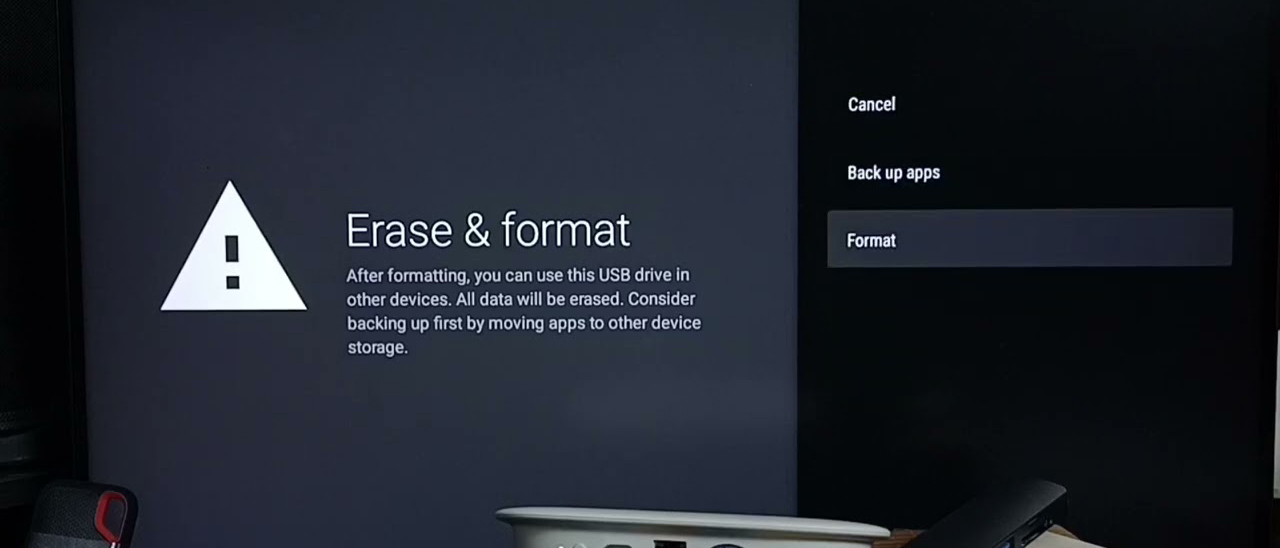
If you’ve ever tried to play a movie from a USB drive on your TV, you’ve probably faced the dreaded “file not supported” error. Whether you own a Samsung, LG, Hisense, Sony, Vizio, Xiaomi, TCL, Philips, Skyworth or any other brand, the question is the same: What video format works on any TV?
The short answer is: MP4 with H.264 video and AAC audio.
Note: There are many ways to play movies or video files on a TV. This article explores the best playback formats supported by TV USB, as well as streaming methods such as DLNA and Plex, and the optimal video formats for playback.
This combination is the universal language of modern TVs – from budget 1080p LED screens to the latest 8K OLED and QD‑OLED models. In this article, we’ll explain why, and show you how to convert your movies (Blu‑ray, DVD, MKV, AVI, WMV, FLV, MTS, etc.) into this foolproof format so you can watch them on any TV via USB.
Why MP4 H.264/AAC Works on Every TV
| Component | Why It’s Universal |
|---|---|
| Container: MP4 | The official standard for most consumer electronics. Supported by every TV made after 2010. |
| Video Codec: H.264 | The most widely adopted video compression standard. Handles everything from 480p to 4K smoothly. |
| Audio Codec: AAC | Works flawlessly on all TVs, unlike DTS or AC‑3 which often fail. |
Bottom line: If you convert any video file to MP4 with H.264 and AAC, your TV will play it – no exceptions.
Want your TV to easily play videos and movies in all formats? Then use Acrok Video Converter Ultimate to solve the incompatibility between your TV and videos. With just 3 simple steps, you can get the H.264 MP4 format that your TV can play smoothly.
Why is it said that MP4 H.264/AAC video can play on any TV that supports USB and streaming?
This statement is based on the fact that the combination of MP4, H.264, and AAC has become a near-universal language in the smart TV world. However, strictly speaking, it does not guarantee playback on every TV, but it offers the highest possible compatibility in most scenarios.
The universality of this combination comes from each of its components being designed and evolving into de facto industry standards. Let’s look at three aspects:
📹 Video Codec: H.264
The core advantage of H.264 lies in its near-ubiquitous compatibility and low hardware requirements, making it the “passport” of video codecs:
- “Gold Standard” Compatibility: From older TVs from the 2010s to the latest 8K flagships, almost all devices have built-in hardware decoders for H.264. Whether via USB or streaming, it’s a safe choice that saves a lot of transcoding trouble.
- Low Hardware Requirements: Compared to its successor H.265/HEVC, H.264 requires lower processor performance, allowing smooth decoding even on older or low-end devices.
- Broad Manufacturer Support: Almost all major TV manufacturers (e.g., Samsung, Sony, TCL, Hisense) explicitly list H.264 as the most basic and core supported format.
🎵 Audio Codec: AAC
As the “golden partner” of H.264, AAC has become the standard configuration for audio support on smart TVs:
- “Master Key” Compatibility: Most smart TVs list AAC as a basic supported format. When a TV encounters an unrecognized audio format, many streaming services (e.g., Plex) automatically transcode it to AAC to ensure sound plays.
- Extremely High Prevalence: From the latest streaming services (e.g., Netflix) to various TV apps, almost all support AAC by default. Major TV manufacturers also explicitly list AAC in their officially supported audio format lists.
🧰 Container Format: MP4
MP4 acts like a well-designed “container” that perfectly packages H.264 video and AAC audio:
- Wide Acceptance: Almost all TVs, phones, computers, and tablets recognize it as the most basic playback format.
- Standard for Online Video: Platforms like YouTube use MP4 as one of their distribution formats, further cementing its status as an industry standard.
- High Device Compatibility: Specifically, the “H.264 + AAC + MP4” combination is recognized as the most compatible choice, the go-to solution when you need a video that will definitely play.
❓ Why Do TVs Generally Support This Combination?
It’s not just because the standards are excellent; it’s also the result of coordinated industry evolution:
- Content Ecosystem Drive: From Blu-ray discs to downloaded content, to mainstream platforms like YouTube, massive amounts of video are distributed in this format. TV manufacturers must support it to play mainstream content.
- Hardware Design Based on Cost: Integrating a single, unified H.264 decoder is far more economical than supporting multiple formats. As a result, TV chip manufacturers build dedicated hardware decoding units, making H.264 playback smooth and power-efficient without taxing the main CPU.
- Official Standard Certification: Many TV manufacturers and streaming services globally list this combination as a standard “direct play” format, giving it widely recognized technical status.
⚠️ Limitations and Exceptions to Watch Out For
Of course, there are still potential playback “pitfalls,” mainly related to video parameters exceeding the TV’s support range:
- H.264 Encoding Profile: Some older TVs may not support H.264 High Profile, only Main or Baseline Profile. Using advanced parameters may cause playback failure.
- H.264 Encoding Level: This indicates the video’s complexity and bitrate. If the video’s level exceeds the TV’s decoding capability, high bitrate may cause stuttering or a black screen.
- Video Resolution or Frame Rate: Ultra-high resolutions (e.g., 4K) or excessively high frame rates (e.g., 60fps) on older TVs may be rejected.
- Audio Codec: Even if the video is packaged in MP4, if the audio is in an unsupported format like DTS, you may experience “picture but no sound.”
Summary
So, if you want to play a video via USB on your TV, this combination is indeed the safest and most successful first choice. However, when encoding, it’s best to keep the parameters “conservative” (e.g., 1080p resolution, 8-bit color depth, AAC stereo audio) to ensure smooth playback.
The Real Problem: MKV and AVI Aren’t Always Compatible
MKV and AVI are container formats, not video codecs. They can hold many different kinds of video, audio, and subtitles. For example:
- An MKV file might use H.264 video (good) but DTS audio (often not supported).
- An AVI file might use an old DivX or Xvid codec that modern TVs no longer recognize.
That’s why even if your TV says it supports MKV, it may still reject a specific file. Don’t just rename the extension – that never works. Instead, convert the file to the universal format.
How to Convert Any Video to MP4 (Works on Any TV)
In order to convert different video files like WMV, AVI, FLV, MOV, M4V, TS, MKV, MPEG, MPG, VOB, and others to MP4, you will need to have a reliable video converter to do the job. If you are seeking the best video output quality, fastest video conversion speed, and the most formats supported, Acrok Video Converter Ultimate (available for Windows and Mac users) will be your best choice. It is integrated with H.264 encoding and decoding. No matter whether you are looking for decoding MP4 video to H.264, H.265, MPEG, or other formats, or converting video to H.264 MP4 (HD/1080P/4K), the professional format converter will fulfill your task quickly and easily.
If you want to play Blu-ray and DVD movies from a USB drive, this software can also easily convert Blu-ray, DVD discs, or their backup files to the H.264 MP4 format. Now just download the program and follow the step-by-step guide below to learn how to convert video files to H.264 MP4 files.
Step 1: Download and Install the Converter
Step 2: Add Your Video Files
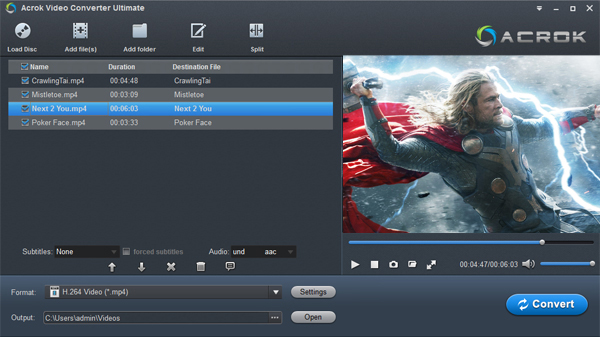
Drag and drop your movies (MKV, AVI, WMV, Blu‑ray folders, DVD, etc.) into the program.
Step 3: Choose the Universal Output Format
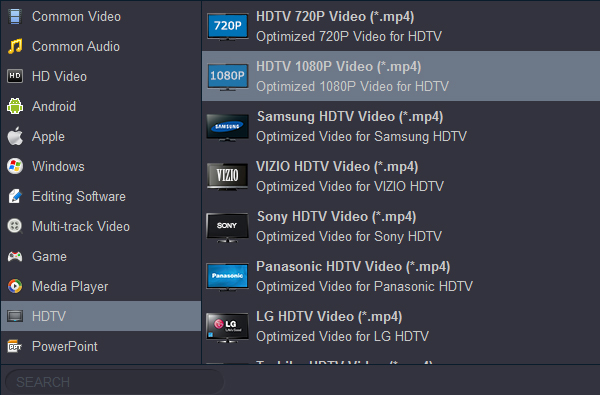
- Click “Output Format”.
- Navigate to “HD Video” > “MP4” (for 1080p) or “4K Video” > “4K MP4” (for 4K).
- For best compatibility, select the profile that says “H.264 + AAC”.
Step 4: (Optional) Adjust Settings
Click “Settings” to fine‑tune:
- Video resolution (same as source or lower)
- Bitrate (e.g., 8000 kbps for 1080p)
- Frame rate (match source)
- Audio codec: AAC, bitrate 256–320 kbps
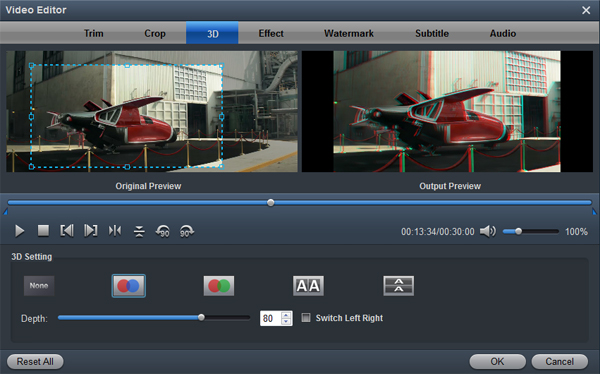
Tip: To get 3D movies for your 3D TV, click the “Edit” icon and add a 3D effect to the loaded videos.
Step 5: Start Conversion
Click “Convert”. GPU acceleration (NVIDIA, AMD, Intel) makes it fast – a 2‑hour movie takes 15–30 minutes.
Step 6: Copy to USB and Play
After conversion, copy the new MP4 file to a USB drive (formatted as exFAT or NTFS for files larger than 4GB). Plug it into any TV’s USB port, select the file, and enjoy.
Bonus: Watch Movies Without Conversion – USB 3.0/2.0 Direct Play
Many modern TVs can play some formats directly via USB 3.0/2.0 ports. However, the supported list varies greatly. Below is a typical set of formats that may work – but to be 100% safe, always fall back to MP4 H.264.
| File Extension | Container | Typical Supported Video Decoders | Typical Supported Audio |
|---|---|---|---|
| .avi / .mkv | AVI, MKV | DivX, XviD, H.264 BP/MP/HP, MPEG‑4 SP/ASP | MP3, AC3, AAC |
| .mp4 | MP4 | H.264, MPEG‑4, XviD | AAC, MP3 |
| .ts | Transport Stream | MPEG‑2, H.264, VC‑1 | AAC, MP3, DD+ |
Note: Even if your TV supports MKV, audio codec issues (e.g., DTS) will cause silence or errors. That’s why conversion to MP4 with AAC is your safest bet.
Frequently Asked Questions
Q: Will converting reduce video quality?
A: No, if you use a high enough bitrate (e.g., 10 Mbps for 1080p). H.264 is visually lossless at those settings. For archiving, you can use H.265 (HEVC) at half the bitrate, but not all older TVs support H.265.
Q: Can I convert a low‑resolution video (480p) to 4K?
A: Technically yes, but it will not improve quality – it will just waste storage space. Ignore online myths about “upscaling SD to 4K” using ordinary converters. Only advanced AI upscalers can do that, and results are rarely good.
Q: Does this work for 3D TV?
A: Yes. In the converter, click the “Edit” icon and choose a 3D effect (e.g., side‑by‑side) before converting to MP4.
Q: What about Blu‑ray and DVD discs?
A: The same converter can rip encrypted Blu‑ray and DVD discs to MP4 H.264 (for legally owned backups). It removes AACS, BD+, CSS protection automatically.
Conclusion
The one video format that truly works on any television – Samsung, LG, Sony, Vizio, TCL, or any brand – is MP4 with H.264 video and AAC audio. If your TV won’t play an MKV or AVI file, don’t waste time renaming extensions or fiddling with TV settings. Simply convert the file to MP4 using a tool like Acrok TV Video Converter, copy it to a USB drive, and enjoy flawless playback.
Remember: Universal compatibility starts with the right format. Now you know the answer to “What works on any television?” – MP4 H.264/AAC.

No responses yet