

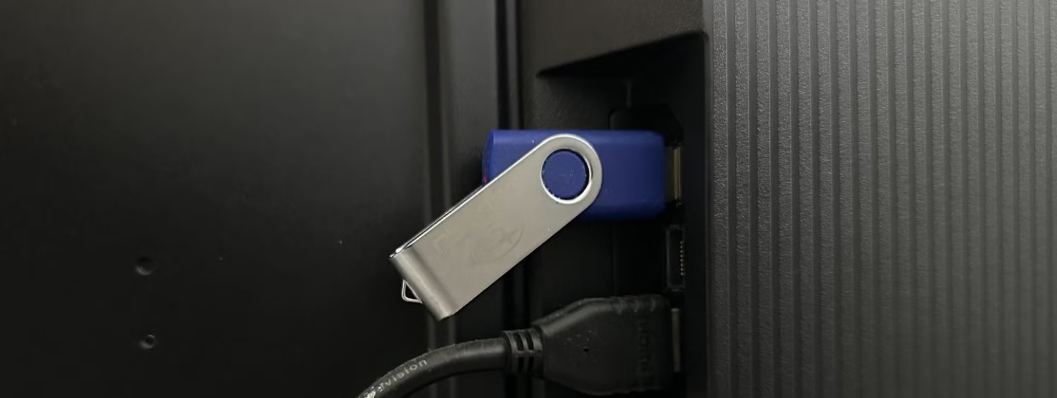
Samsung TVs are famous for their brilliant QLED and Neo QLED displays, but when you try to play H.265 (HEVC) video files directly from a USB drive or external hard drive, you may run into the frustrating “file format not supported” error. Why does this happen, and how can you fix it? In this article, we will explain the Samsung TV supported video formats, why H.265 files sometimes fail, and how to use a reliable H.265 Video Converter for TV to solve the problem once and for all. We strongly recommend Acrok Video Converter Ultimate as the best TV Format Converter for this task.
Understanding Samsung TV Supported Video Formats
Before diving into solutions, it helps to know what Samsung TVs actually support. Most Samsung TV models (including Crystal UHD, QLED, and The Frame series) officially support:
- Video codecs: H.264 (AVC), H.265 (HEVC), VP9, and AV1 (on newer models)
- Containers: MP4, MKV, AVI, MOV, and sometimes TS
- Audio codecs: AAC, MP3, Dolby Digital (AC3), and Dolby Digital Plus (E-AC3)
However, even though H.265 is listed as supported, many users still encounter problems. The reason is that “supported” does not mean “every H.265 file works.” Samsung TVs have strict requirements regarding:
- H.265 profile and level (e.g., Main 10 Profile Level 5.1 is usually fine, but Level 6.0 or higher fails)
- Audio format inside the container (DTS and TrueHD are not supported)
- Container type (MKV with H.265 may play, but MKV with certain subtitle tracks can crash)
- Bitrate and resolution (very high bitrate 4K H.265 files may stutter or refuse to play)
To make any H.265 file work flawlessly on your Samsung TV, you need a tool that can convert H.265 format to TV supported format without losing quality.
Why You Need a Format Converter for TV
Instead of guessing which H.265 settings your Samsung TV accepts, the smart solution is to use a TV Format Converter that automatically re‑encodes or remuxes your file into a guaranteed‑compatible configuration. The best choice in 2026 is Acrok Video Converter Ultimate – a professional yet easy‑to‑use H.265 Video Converter for TV.
Recommended Software: Acrok Video Converter Ultimate
After testing multiple video conversion tools on various Samsung TV models (from Q60 to S95C), we strongly recommend Acrok Video Converter Ultimate for three core reasons: perfect Samsung presets, flexible H.265 handling, and blazing speed with GPU acceleration.
Why Acrok Video Converter Ultimate?
1. Built‑in Samsung TV Presets
Acrok includes dozens of device‑specific presets. To play H.265 on your Samsung TV, simply select “Samsung TV” from the device list, then choose your TV series (e.g., Samsung 4K QLED, Samsung 8K, or Samsung Full HD). Acrok automatically sets:
- Container: MP4 (most compatible) or MKV
- Video codec: H.265 (if your TV supports it) or fallback to H.264 (for older models)
- Audio codec: AAC or AC3 (both supported by Samsung)
- Resolution & bitrate: Optimized for smooth USB playback
This turns Acrok into the ultimate format converter for TV – no manual tweaking required.
2. Two Ways to Handle H.265 – Smart and Fast
Acrok gives you two options to convert H.265 format to TV supported format:
- Lossless remux (no re‑encoding): If your original H.265 file already uses a compatible video codec but is in a wrong container (e.g., MKV instead of MP4) or has unsupported audio (DTS), Acrok can repackage the file into MP4 with AAC audio in seconds. Quality is untouched, and the process is almost instantaneous.
- Full re‑encoding (when needed): If your TV does not support H.265 at all (older Samsung models), Acrok can convert H.265 to H.264 while preserving 4K resolution or downscaling to 1080p. Quality remains excellent thanks to its advanced encoder.
3. Solves Audio Problems Automatically
Many H.265 movies contain DTS, DTS‑HD Master Audio, or TrueHD. Samsung TVs do not support these codecs. Acrok detects the audio stream and lets you convert it to AAC or Dolby Digital (AC3) – both are standard Samsung TV supported video formats for audio. You can even keep the original video untouched and only convert audio, saving massive time.
4. GPU Acceleration for Fast 4K H.265 Conversion
Converting H.265 video is resource‑intensive. Acrok supports NVIDIA CUDA, AMD, and Intel Quick Sync, making it up to 6x faster than software‑only converters. A 2‑hour 4K H.265 movie can be converted to a Samsung‑friendly MP4 in 20–30 minutes instead of 2–3 hours.
5. Batch Conversion and Basic Editing
- Batch convert multiple H.265 files for your Samsung TV in one go.
- Trim unwanted sections (opening logos, end credits).
- Crop black bars for full‑screen viewing.
- Add hardcoded or external subtitles (SRT, ASS).
6. Works with External Drives of Any Size
Acrok outputs files that are fully compatible with USB 3.0 and external HDDs formatted as exFAT or NTFS. No 4GB file size limit (unlike FAT32).
Step‑by‑Step Guide: Convert H.265 for Samsung TV USB Playback
Follow these simple steps to make any H.265 movie work on your Samsung TV:
1. Download and install Acrok Video Converter Ultimate from the official website (Windows or Mac).
2.Insert your USB drive (exFAT or NTFS) into the computer.
3.Launch Acrok and click “Add Files” – load your H.265 MKV, MOV, or MP4 file.
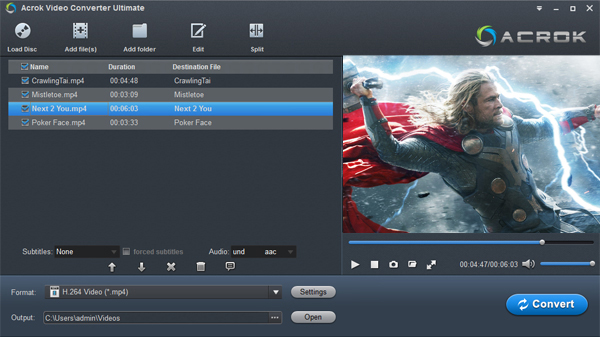
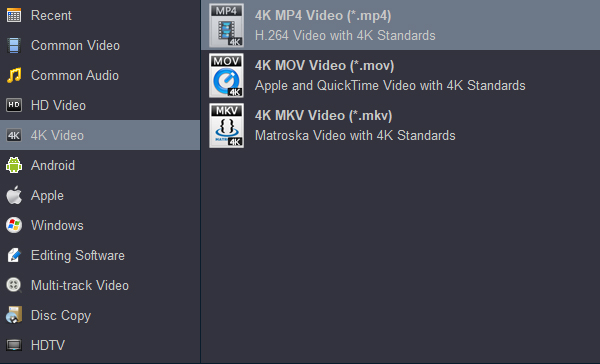
Choose the Samsung TV preset – Click the format drop‑down, go to “4K” then select “4K MP4 Video (*.mp4)”.
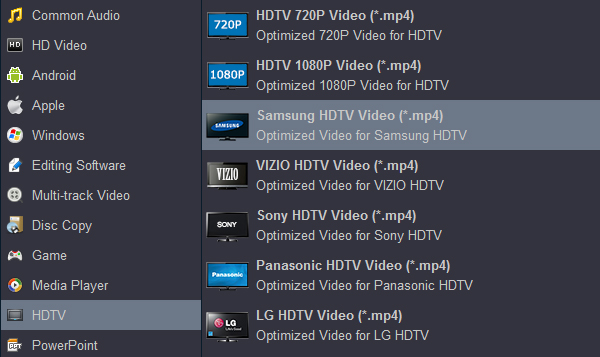
For older Full HD Samsung TVs, choose “Samsung Full HD TV (H.264 + AAC)”.
Adjust audio (optional): Click “Settings” next to the output format, then set audio codec to AAC or AC3.
Select output folder – You can convert to your computer first, then copy to USB.
Click “Convert” – Acrok will process the file using GPU acceleration.
Copy the output MP4 file to your USB drive.
Plug the USB drive into your Samsung TV, navigate to “Source” > “USB”, and enjoy smooth H.265 playback.
Common Samsung TV USB Playback Issues – And How Acrok Fixes Them
| Problem | Cause | Acrok Solution |
|---|---|---|
| “File format not supported” | Wrong container (e.g., AVI) | Remux to MP4 |
| Video plays but no sound | DTS or TrueHD audio | Convert audio to AAC/AC3 |
| Video stutters or lags | Too high bitrate or profile | Re‑encode to Level 5.1 |
| 4K H.265 won’t play on older TV | TV lacks H.265 decoder | Convert H.265 to H.264 |
| Subtitles not showing | Unsupported subtitle format | Hardcode subtitles into video |
Alternative Tools (Not Recommended)
While there are free tools like HandBrake or VLC, they lack Samsung‑specific presets, require complex manual settings, and cannot remux without re‑encoding. For a hassle‑free experience, Acrok is the only H.265 Video Converter for TV that truly understands Samsung’s requirements.
Final Verdict
Knowing the Samsung TV supported video formats is the first step. The second step is using a powerful TV Format Converter like Acrok Video Converter Ultimate. Whether you need to convert H.265 format to TV supported format for a brand‑new Samsung 8K TV or an older Full HD model, Acrok delivers perfect USB playback every time. Its device presets, audio conversion, GPU acceleration, and lossless remux make it the ultimate format converter for TV.
Stop wasting time trying different encoders. Get Acrok Video Converter Ultimate today and play any H.265 movie on your Samsung TV directly from USB or external drive.

No responses yet