

If you work with professional video equipment like Sony, Panasonic, Canon, or RED cameras, you may have encountered MXF (Material Exchange Format) files. MXF is a container format widely used in broadcasting, film production, and post-production. It is designed to wrap video, audio, metadata, and timecode into a single file, making it ideal for professional workflows. However, 4K MXF files come with significant challenges: they are notoriously large in size and have poor compatibility with consumer devices and mainstream media players. Many video editors, smartphones, and even high-end computers struggle to play or process raw 4K MXF footage. This is where a reliable 4K to 1080p Converter becomes essential.
Why You Need to Downscale 4K MXF to 1080p
To better utilize your 4K MXF video files, it is necessary to compress 4K MXF to 1080p. Why? First, 4K MXF files demand enormous storage space and bandwidth. Uploading a 4K MXF clip to YouTube or sharing it with clients can take hours. Second, most consumer devices (laptops, tablets, smartphones) cannot decode 4K MXF smoothly, leading to stuttering playback or no playback at all. Third, editing 4K MXF footage in software like Premiere Pro or DaVinci Resolve often requires powerful hardware; otherwise, your timeline will lag.
By using a powerful 4K Video Converter, you can downscale 4K MXF video to 1080p, significantly reducing file size while retaining excellent image quality. The result is a much more compatible, easy-to-share, and editable video file.
Recommended Solution: Acrok Video Converter Ultimate
When you need to convert 4K to 1080p quickly without quality loss, Acrok Video Converter Ultimate stands out as the best choice. It is specifically designed to handle high-resolution professional formats like MXF, MKV, MOV, and more. With GPU hardware acceleration (Intel, NVIDIA, AMD), Acrok can downscale 4K MXF video to 1080p at up to 6x faster speed than real-time playback, all while preserving visual fidelity.
Acrok vs. Free Online Video Converters
Many users wonder: “Can I just use a free online video converter to downscale my 4K MXF?” Here is a quick comparison:
| Feature | Acrok Video Converter Ultimate | Free Online Converters |
|---|---|---|
| Supports 4K MXF files | ✅ Yes | ❌ Rarely (file size/format limits) |
| Works offline | ✅ Yes | ❌ No (requires internet) |
| File size limit | ❌ No limit | ✅ Usually ≤1-2 GB |
| Conversion speed | Ultra-fast (GPU acceleration) | Slow (depends on upload/download) |
| Privacy | 100% offline, no upload | Files uploaded to unknown servers |
| Batch conversion | ✅ Yes | ❌ No |
| Watermark on output | ✅ No | ✅ Often yes (free tier) |
| Output quality | Visually lossless | Often degraded |
Free online converters may seem convenient, but they rarely support large 4K MXF files due to upload size restrictions. Moreover, uploading professional footage to a random website poses serious privacy risks. Acrok Video Converter Ultimate keeps your data on your own computer, processes files offline, and delivers professional-grade results in a fraction of the time.
How to Downscale 4K MXF to 1080p with Acrok in 3 Simple Steps
Follow this quick guide and learn how to compress 4K MXF to 1080p using Acrok Video Converter Ultimate.
Step 1: Launch Acrok and Import Your 4K MXF Files
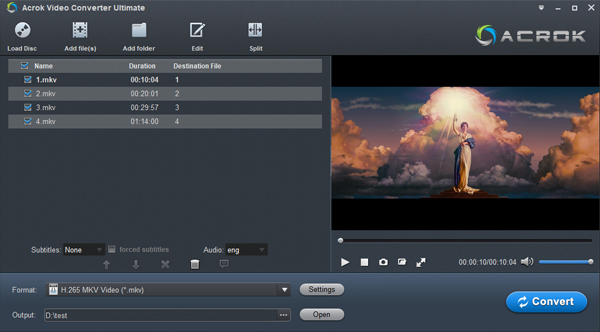
Open Acrok Video Converter Ultimate. Click the “Add File(s)” button or simply drag and drop your 4K MXF videos into the program window. Batch conversion is supported, so you can add multiple files at once. Preview the video on the right to confirm it’s the correct footage.
Step 2: Set Output Format and 1080p Resolution
Click the “Profile” drop-down menu. Since you want to downscale 4K MXF video to 1080p with broad compatibility, choose MP4 with H.264 or H.265 codec. For even smaller file size, select H.265 (HEVC).
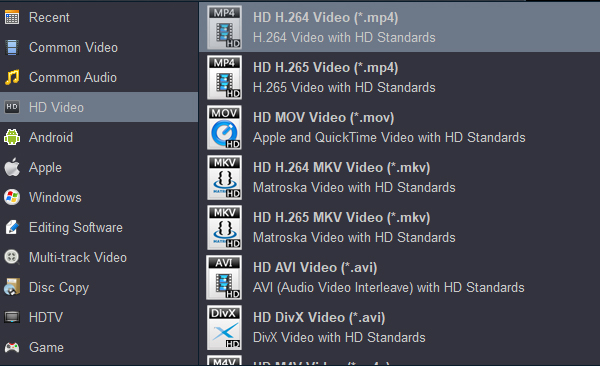
Next, click the “Settings” gear icon next to the Profile option. In the Resolution field, manually set the value to 1920×1080 (1080p). You can also lower the bitrate if needed – Acrok’s intelligent algorithm ensures minimal quality loss.
Tip: If you are not familiar with other parameters like aspect ratio or frame rate, leave them as default. Acrok automatically prevents black bars and maintains the original aspect ratio.
Step 3: Start Converting
Choose an output destination folder by clicking the “Output” bar. Then hit the big “Convert” button to begin the 4K MXF to 1080p conversion. Thanks to hardware acceleration, the process completes quickly – even a long 4K movie can be downscaled in minutes. Once finished, click “Open” to locate your new 1080p video, ready for editing, sharing, or playing on any device.
Conclusion
Whether you are a professional videographer or an enthusiast, dealing with bulky 4K MXF files is a real challenge. By using a dedicated 4K to 1080p Converter like Acrok Video Converter Ultimate, you can easily compress 4K MXF to 1080p, save storage space, improve playback compatibility, and speed up your editing workflow. Unlike unreliable free online converters, Acrok offers offline privacy, blazing fast speed, and lossless quality. Downscale 4K MXF video to 1080p today and enjoy a smoother video experience!

No responses yet