

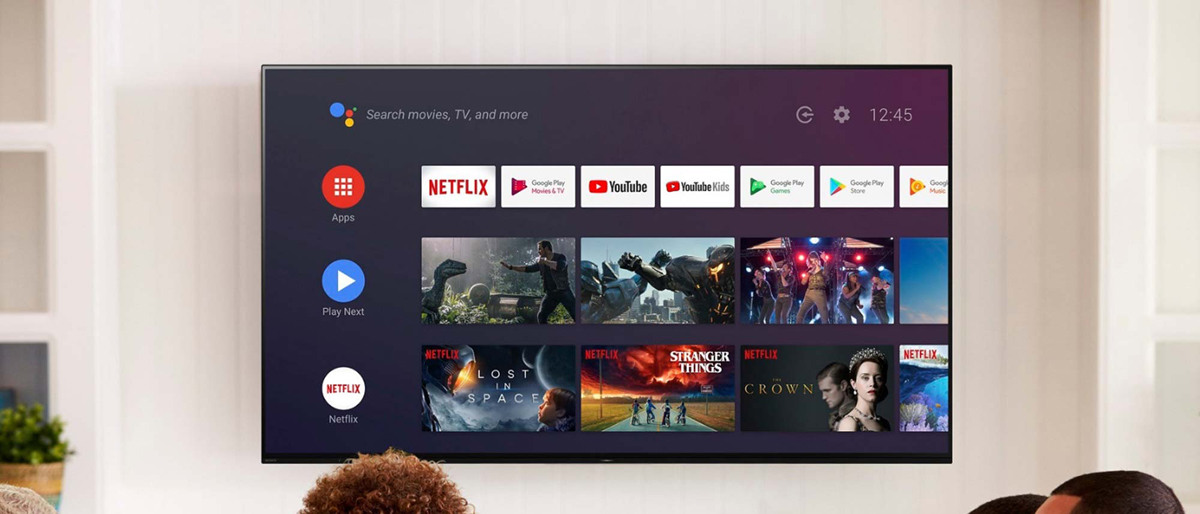
Sony’s BRAVIA Smart TV series are renowned for their stunning picture quality, powered by advanced processors like the Cognitive Processor XR. One of the standout features is XR Super Resolution, which detects individual objects in a picture and reproduces virtually real‑world textures on screen. This technology can upscale 2K or 4K signals to near‑true 8K quality, delivering incredibly immersive viewing experiences. Sony’s latest flagship models – such as the BRAVIA 9, BRAVIA 8, BRAVIA 7, A95L, A80L, X95L, and X90L – represent the pinnacle of what Sony has ever produced in 4K and 8K Ultra HD smart TVs.
But even with such advanced hardware, many users face a common frustration: Sony BRAVIA Smart TVs cannot natively play certain video file formats, especially MKV and AVI files, when connected via USB. This article will explain why this happens and provide the best solutions to watch any video format on your Sony BRAVIA TV.
Why Can’t My Sony BRAVIA TV Play MKV/AVI Files?
First, let’s understand the root cause. Sony BRAVIA TVs support a wide range of video codecs and containers, but they are not universal media players. The TV’s built‑in media player has limitations:
- Container support – Sony TVs typically play MP4, MOV, and some MKV files, but AVI support is limited or absent on newer models.
- Codec restrictions – Even if the container is MKV, the internal video codec (e.g., DivX, Xvid, or certain H.264 profiles) may not be compatible.
- Audio codec issues – DTS audio, common in MKV files, is often not supported on recent Sony TVs due to licensing changes.
- File size & USB format – USB drives formatted as exFAT or NTFS may work, but some older TV models require FAT32 (which limits file size to 4GB).
The good news is that you can easily overcome these limitations without buying new hardware. Below are the best methods.
Method 1: Watch MKV/AVI Movies via USB Directly
This is the simplest method, but it only works for files that are already compatible with your TV.
Step‑by‑step:
- Copy your MKV or AVI movies to a USB flash drive (formatted as exFAT or NTFS – FAT32 only for files under 4GB).
- Insert the USB drive into the USB port of your Sony BRAVIA TV (usually located on the side or back panel).
- Press the “Home” button on your remote, then select “Media Player” or “USB” from the input list.
- Browse to your file and try to play it.
What if it doesn’t play?
If the TV shows an error message like “File not supported” or “Audio not supported,” you will need to convert the file (Method 2). Do not simply rename the extension – that never works.
Method 2: Convert MKV/AVI to Sony BRAVIA‑Supported Format (Recommended)
The most reliable way to ensure playback is to convert your MKV or AVI files to MP4 with H.264 video and AAC audio. This format is universally supported by all Sony BRAVIA models, from older X80J series to the latest BRAVIA 9.
Free download and try the best MKV/AVI Converter for Sony BRAVIA TV
Why MP4 H.264?
| Feature | Benefit |
|---|---|
| H.264 video codec | Supported by every Sony TV made after 2010. |
| AAC audio | Works without any compatibility issues. |
| MP4 container | Native support; fast seeking and no lag. |
| 1080p or 4K | You can choose resolution based on your source. |
Introducing the Sony TV Video Converter
To perform this conversion easily, you can use a dedicated tool like Acrok Video Converter Ultimate (often referred to as a Sony TV Video Converter). This software is designed to:
- Convert MKV, AVI, WMV, MOV, and over 300 other formats to Sony‑friendly MP4.
- Remove DRM protection from Blu‑ray/DVD discs (for legally owned discs).
- Edit videos (trim, crop, add subtitles) before conversion.
- Utilize GPU hardware acceleration (NVIDIA CUDA, AMD, Intel Quick Sync) for fast processing.
You can download a free trial from the official website (search “Acrok Video Converter Ultimate”).
Step‑by‑Step Guide: Convert MKV/AVI to MP4 for Sony BRAVIA Smart TV
Follow these steps to convert your movies for playback on any newer Sony BRAVIA model (BRAVIA 9/8/7, A95L, A80L, X95L, X90L, etc.).
Step 1: Install and Launch the Converter
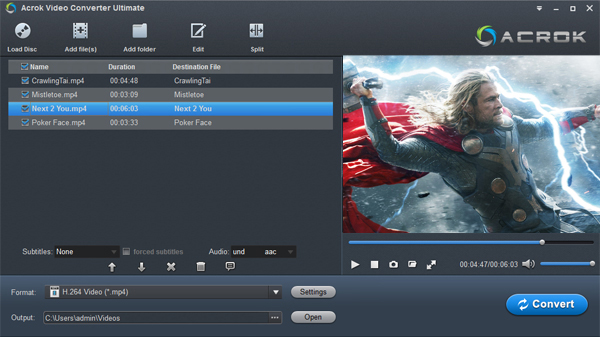
Download and install the best Format Converter for Sony TV. Open it and you will see a clean interface.
Step 2: Add MKV/AVI Files
Click “Add Files” or simply drag and drop your MKV/AVI movies into the program. You can add multiple files for batch conversion.
Step 3: Select the Correct Output Profile
Click the “Format” drop‑down menu. Navigate to:
- Format > HD Video > MP4 (for 1080p resolution)
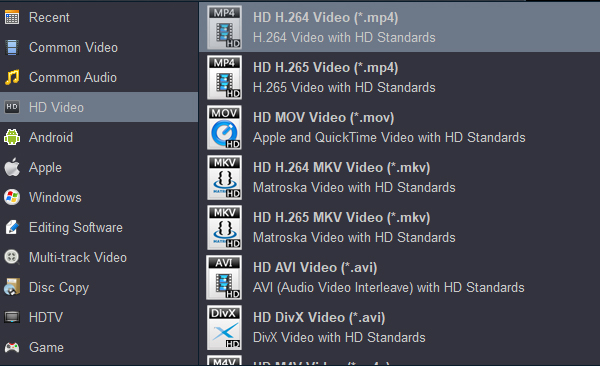
If your original source is 4K (e.g., from a 4K Blu‑ray or a high‑resolution camera), you can choose:
- 4K Video > 4K MP4 Video (*.mp4) – this preserves the 4K resolution.
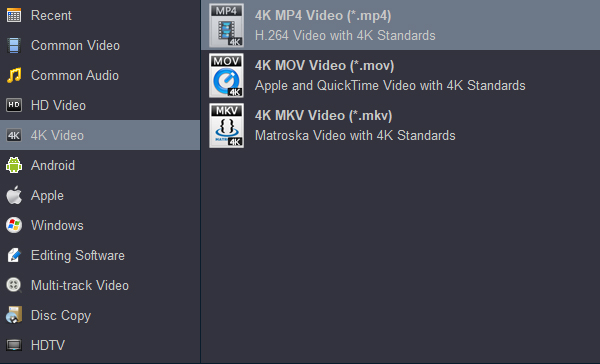
For Sony BRAVIA TVs that support H.265 (HEVC), you may also select “MP4 H.265” for smaller file sizes, but H.264 is the safest choice.
Step 4: Adjust Video Parameters (Optional)
Click the “Settings” button next to the profile to fine‑tune:
- Video Codec: H.264
- Resolution: 1920×1080 (1080p) or 3840×2160 (4K)
- Bitrate: 8000‑12000 kbps for 1080p; 35000‑45000 kbps for 4K
- Frame Rate: Same as source (23.976, 24, 30, 60 fps)
- Audio Codec: AAC
- Audio Bitrate: 320 kbps
- Sample Rate: 48000 Hz
Step 5: Start Conversion
Click the big “Convert” button. The software will begin transcoding. Thanks to hardware acceleration, a 2‑hour 1080p movie typically takes 15‑30 minutes.
Step 6: Locate Converted Files
After conversion, click “Open” to reveal the output folder. You will see your new MP4 files.
Step 7: Transfer to USB Drive
Copy the converted MP4 files to a USB flash drive (formatted as exFAT or NTFS). Safely eject the drive from your computer.
Step 8: Play on Your Sony BRAVIA TV
Insert the USB drive into your Sony TV. Open the Media Player app, navigate to your file, and enjoy smooth playback of your formerly problematic MKV/AVI movies.
Bonus: Ripping Blu‑ray/DVD to Sony TV‑Friendly Format
If you own physical Blu‑ray or DVD discs, you can use the same converter software to rip them into MP4 files for your Sony BRAVIA TV. This is especially useful for creating a digital backup of your movie collection.
How to rip a Blu‑ray/DVD:
- Insert the disc into your PC’s optical drive.
- Open the converter and click “Load Disc”.
- Select the main title (usually the longest one).
- Choose the same MP4 H.264 output profile.
- Click “Convert” – the software will remove any DRM (AACS, BD+, CSS) automatically (for legally owned discs).
Important Tips for Best Results
| Tip | Explanation |
|---|---|
| Don’t rename extensions | Changing .mkv to .mp4 does nothing – the internal codec remains unchanged. |
| Avoid upscaling low‑resolution sources | If your original video is 480p, converting to 1080p or 4K will not improve quality; it only wastes storage space. Ignore online myths about “converting SD to 4K” – that’s impossible without AI upscaling, and even then the results are poor. |
| Use hardware acceleration | Ensure your converter enables GPU encoding for faster speed. |
| Check USB format | For movies larger than 4GB, format your USB drive as exFAT or NTFS (not FAT32). |
| Subtitles | If your MKV has soft subtitles, either burn them into the video (select “burn‑in” in the converter) or download SRT files. |
Newer Sony BRAVIA TV Models – Quick Reference
The following table lists the latest Sony BRAVIA Smart TV models (as of 2025‑2026) and their native USB video support:
| Model Series | Panel Type | Max Resolution | Native MKV Support | Native AVI Support |
|---|---|---|---|---|
| BRAVIA 9 | Mini‑LED | 4K (upscale to 8K) | Partial (H.264 only) | No |
| BRAVIA 8 | OLED | 4K | Partial | No |
| BRAVIA 7 | Mini‑LED | 4K | Partial | No |
| A95L (2023) | QD‑OLED | 4K | Partial (H.264, H.265) | No |
| A80L (2023) | OLED | 4K | Partial | No |
| X95L (2023) | Mini‑LED | 4K | Partial | No |
| X90L (2023) | Full‑Array LED | 4K | Partial | No |
| BRAVIA 3 (2024) | LED | 4K | Limited | No |
Note: Even when a model claims “MKV support,” the actual codec support varies. Always convert to MP4 H.264 for guaranteed playback.
Frequently Asked Questions (FAQ)
Q1: Can I watch AVI files on Sony BRAVIA 9?
A: No, AVI is not supported on any newer Sony BRAVIA TV. You must convert AVI to MP4 H.264.
Q2: Does Sony BRAVIA support external subtitles?
A: Yes, but only if the subtitle file (.srt) has the exact same name as the video file and is placed in the same folder. For MKV files with embedded subtitles, conversion to MP4 may lose them unless you burn them in.
Q3: Will converting reduce video quality?
A: Using H.264 with a sufficiently high bitrate (e.g., 10 Mbps for 1080p) results in virtually lossless quality. For archival purposes, you can use H.265 (HEVC) at half the bitrate, but ensure your TV supports it (BRAVIA 7/8/9 and A95L do).
Q4: Is there a free alternative to Acrok?
A: Yes, HandBrake is a free, open‑source converter. However, HandBrake cannot rip encrypted Blu‑rays or DVDs. For basic MKV/AVI to MP4 conversion, HandBrake works perfectly.
Q5: My TV shows “Audio not supported” even after conversion. Why?
A: You may have selected an unsupported audio codec like DTS or AC‑3 (Dolby Digital). Always choose AAC or MP3 for guaranteed compatibility.
Conclusion
Sony BRAVIA Smart TVs – from the BRAVIA 9 down to the X90L – deliver breathtaking picture quality, but their native media players have limitations. MKV and AVI files often fail to play directly from a USB drive. The best solution is to convert those files to MP4 with H.264 video and AAC audio using a reliable video converter like Acrok Video Converter Ultimate (or the free HandBrake).
By following the step‑by‑step guide in this article, you can convert any MKV or AVI movie to a fully compatible format and enjoy it on your Sony BRAVIA Smart TV via USB or network streaming. Remember: never simply rename the file extension, and don’t waste time upscaling low‑resolution sources to 4K – it doesn’t improve quality.
Now you can sit back, relax, and enjoy your favorite movies on the big screen without any playback errors!

No responses yet