
Apple ProRes is a professional-grade video format developed by Apple, known for its near-lossless quality and smooth performance in editing software such as Final Cut Pro, Adobe Premiere Pro, and DaVinci Resolve. It is widely used in post-production, but its large file sizes and platform-specific characteristics often make it inconvenient for everyday playback, sharing, or cross-device use.
That’s why many editors and creators choose to convert ProRes videos into more practical formats like H.265 MP4. Poorly executed conversions can lead to long processing times or noticeable quality loss. However, using a reliable Acrok ProRes to MP4 Converter makes the process quick, dependable, and capable of preserving the original look of your footage. In the following sections, we’ll explore what Apple ProRes is and how to convert it correctly-especially to H.265 MP4.
Key Takeaways
- What Apple ProRes Is – A professional video codec designed for high-quality editing, color grading, and post-production, especially in tools like Final Cut Pro, Premiere Pro, and DaVinci Resolve.
- Why Convert ProRes – Many users convert ProRes 422 to H.265 MP4 or convert ProRes 4444 to H.265 MP4 because ProRes files are bulky, harder to share, and less practical for playback on smart TVs, Windows, mobile devices, and everyday platforms.
- Best Conversion Method – A powerful ProRes to MP4 Converter like Acrok Video Converter Ultimate provides fast and reliable conversion while preserving quality, with support for batch processing, hardware acceleration, and flexible output settings.
- How to Keep Quality – To maintain the best results during ProRes video conversion, keep original resolution and frame rate, choose a suitable bitrate and codec, test short clips first, and always save the original ProRes master file.
Part 1. What is Apple ProRes and Why Convert Apple ProRes to H.265 MP4
If you have spent time editing video, you have likely encountered Apple ProRes. It is Apple’s high-quality video format designed to keep footage sharp even after heavy color correction, effects, and multiple edits-without the enormous file sizes of raw uncompressed video. It supports resolutions up to 8K and runs smoothly, especially on Macs.
For editors, this is a game-changer. You can handle complex projects without your computer struggling. This is why ProRes has become the standard in film studios, broadcast TV, and even high-end YouTube productions.
However, there is a downside: ProRes is not the easiest to share or store. A one-minute clip can take up several gigabytes, and while Macs handle it fine, Windows, TV, projector, and mobile users often encounter playback errors. Converting to H.265 MP4 solves these issues:
- Plays anywhere – No more “file not supported” errors on phones, tablets, or smart TVs.
- Smaller files – Faster uploads, quicker backups, and less waiting.
- No extra hassle – Viewers won’t need to install obscure codecs.
- Better for teams – Everyone gets a file that works, no matter their device.
Quick Tip: Keep your ProRes originals for editing or archiving, then make compressed H.265 MP4 copies for sharing. This gives you the best of both worlds—top quality when you need it, and convenience when you don’t.
Part 2. Where is Apple ProRes Commonly Used?
Apple ProRes has earned its place as one of the most trusted codecs in professional video because it maintains high visual quality while keeping editing smooth. You will find it in a variety of production environments:
- Film and Television Post-Production – Major studios and broadcast networks use ProRes for editing dramas, documentaries, and live event coverage.
- YouTube and Streaming Content at a Professional Level – Many top creators edit their projects in ProRes before exporting to delivery formats like H.265 or H.264.
- Commercials and Corporate Media – Advertising agencies and corporate video teams rely on ProRes for green screen work, motion graphics, and complex compositing.
- Documentary and Archival Work – ProRes is widely used for long-term preservation, ensuring image quality holds up for years.
Part 3. Limitations and Challenges of Apple ProRes
While Apple ProRes is a favorite in professional editing, it is not without drawbacks. Knowing these limitations helps you decide when to use it and when to convert ProRes 422 to H.265 MP4 or convert ProRes 4444 to H.265 MP4 for greater practicality.
- Large File Sizes – Even though ProRes is smaller than uncompressed video, a few minutes of 4K ProRes HQ footage can take up several gigabytes.
- Limited Playback Compatibility – ProRes plays flawlessly on macOS, but Windows, Linux, and many mobile devices require extra codecs or compatible software.
- Less Efficient Outside macOS – While Macs handle ProRes with ease, editing on other platforms may be slower and put more strain on the system.
- Bandwidth and Transfer Challenges – Uploading or sending ProRes files over the internet can be slow due to their size, making them impractical for quick delivery.
Part 4. Apple ProRes vs. Other Video Formats – Quick Comparison
| Format | Primary Use | File Size | Compatibility |
|---|---|---|---|
| Apple ProRes | Professional editing & mastering | Very large | macOS, professional software |
| H.264 MP4 | Delivery & streaming | Small | Universal |
| H.265 MP4 | Modern delivery (better compression) | Smaller than H.264 at same quality | Most modern devices |
| MOV | Container for editing workflows | Varies | Apple ecosystem + cross-platform players |
Part 5. How to Convert ProRes to H.265 MP4 Step by Step
If you need to convert Apple ProRes to H.265 MP4 without losing quality, Video Converter Ultimate is one of the most reliable tools you can use. Developed by Acrok, it’s built for both beginners and professionals – offering a simple interface for quick jobs and advanced settings for those who want full control.
Why Choose Acrok for Apple ProRes Conversion?
- Wide Format Support – Convert Apple ProRes into MP4, MOV, AVI, MKV, and over a thousand other formats.
- Quality Control – Adjust resolution, bitrate, and codecs to get the perfect balance between quality and file size.
- Speed and Efficiency – Hardware acceleration takes advantage of your GPU to cut conversion times dramatically.
Using a dedicated ProRes to MP4 Converter makes the process straightforward. Here is a general workflow:
- Add your ProRes files – Import single or multiple files (ProRes 422, ProRes 4444, etc.).
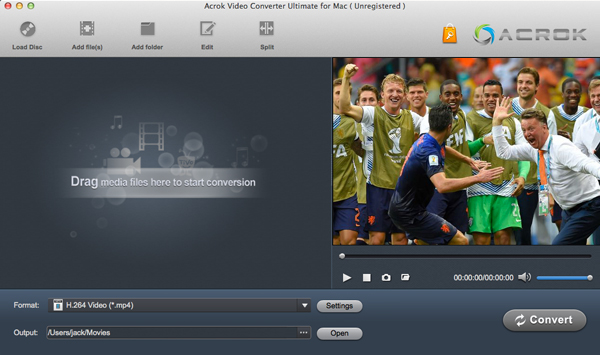
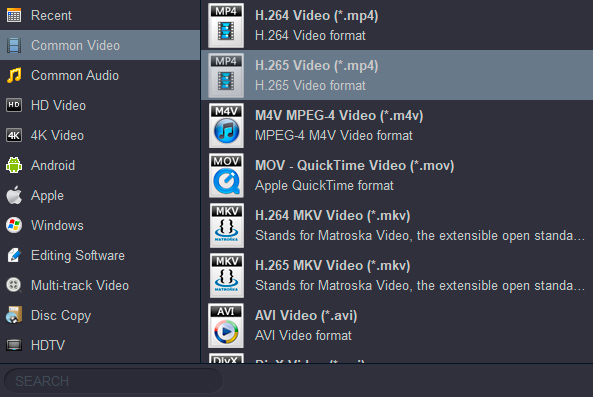
- Select H.265 MP4 as the output format – Set the codec to H.265 (HEVC) and container to MP4.
- Adjust quality settings – Keep original resolution and frame rate. Set a bitrate of 20-30 Mbps for 4K, or 10-15 Mbps for 1080p.
- Start conversion – Enable GPU acceleration if available. Wait for the process to finish.
- Verify the output – Check playback on your target device.
Many tools, including Acrok Video Converter Ultimate, offer both online and desktop versions. For frequent or large-scale conversions, a desktop ProRes to MP4 Converter is recommended.
Part 6. Tips for Maintaining Quality During ProRes to H.265 MP4 Conversion
When you convert ProRes to H.265 MP4, you want to preserve as much original quality as possible. Here are practical tips:
- Choose a high bitrate – For 4K H.265, aim for 20-30 Mbps; for 1080p, 8-15 Mbps is usually sufficient.
- Keep original resolution and frame rate – Changing them can introduce artifacts or unnatural motion.
- Use hardware acceleration – Modern GPUs speed up conversion without quality loss.
- Test with a short clip – Convert 20-30 seconds with your settings to check the balance of quality and file size.
- Select the right codec – H.265 gives better compression than H.264, but ensure your playback devices support it.
- Always keep an archive copy in ProRes – Once compressed, you cannot recover the original quality.
Conclusion
Apple ProRes remains one of the top professional video formats, but converting it to more common formats like H.265 MP4 is often necessary for playback, sharing, and editing on non-Mac systems. A reliable Apple ProRes Converter-whether you need to convert ProRes 422 to H.265 MP4, convert ProRes 4444 to H.265 MP4, or simply use a general ProRes to MP4 Converter-makes the process fast, reliable, and simple. By following the quality preservation tips above, you can enjoy small, shareable H.265 MP4 files without sacrificing too much of your original ProRes quality.
FAQs
Can Apple ProRes be played on Windows?
Yes, but you will need compatible software like VLC or convert it using a ProRes to MP4 Converter for broader playback support.
Does converting Apple ProRes to H.265 reduce quality?
Not necessarily. With proper settings (high bitrate, same resolution/frame rate), the loss can be minimal and often visually imperceptible.
Which format is best to convert Apple ProRes into for sharing?
MP4 with H.265 (HEVC) offers the best balance of quality and file size for modern devices. For maximum compatibility, H.264 MP4 is safer.
Can I batch convert multiple Apple ProRes files?
Yes, most desktop Apple ProRes Converter tools support batch conversion, allowing you to convert many files at once.
Is there a free way to convert ProRes to H.265 MP4?
Some online converters offer free basic conversion, but they often have file size limits. The desktop version of Acrok Video Converter Ultimate provides a free trial with full features.
Tags: best prores to h.264 mp4 converter, convert prores video to mp4, apple prores to h.265 converter, how to convert 4k prores to mp4, encode prores video to mp4 on mac