

If you have old DVDs stored on your computer, you have probably noticed that each DVD rip creates a folder called VIDEO_TS, which contains multiple .VOB (Video Object) files. These VOB files hold the actual movie video, audio, and subtitle streams. You copy them to a USB flash drive, plug it into your Samsung Smart TV, and… nothing happens. The TV either shows a “file format not supported” error or plays only one short chapter instead of the full movie. Why does this happen, and how can you play VOB videos on Samsung TV without frustration?
In this guide, we will explain why VOB files are incompatible with Samsung Smart TVs, what the Samsung Smart TV best playback video format actually is, and how to use a reliable VOB Converter for Samsung Smart TV – specifically Acrok Video Converter Ultimate – to convert your VOB files into a format your Samsung TV loves. We will also give you a step‑by‑step tutorial so you can watch VOB movies on Samsung Smart TV directly from a USB drive.
Why Samsung Smart TV Cannot Play VOB Files Natively
Samsung Smart TVs (from QLED to Crystal UHD to The Frame series) are incredibly capable, but they have never supported the VOB container. Here is why:
- VOB is a DVD‑era container – It was designed for DVD discs, not for modern media players. Samsung’s USB media player does not recognise the VOB file structure.
- Multiple VOB files per movie – A single DVD movie is split into several 1GB VOB files (e.g., VTS_01_1.VOB, VTS_01_2.VOB). Your Samsung TV cannot seamlessly play them back‑to‑back.
- MPEG‑2 video codec – VOB files use the old MPEG‑2 codec, which is inefficient and often not fully supported by Samsung’s video decoder.
- AC3 or MP2 audio – While some Samsung TVs support AC3 (Dolby Digital), many VOB files also contain MP2 audio, which is rarely supported.
- No menu navigation – VOB files lack the DVD menu structure. You cannot select chapters or languages easily.
To convert VOB to Smart TV supported format, you need a dedicated TV Format Converter that can combine multiple VOB files, transcode the video and audio, and output a single, smooth file that your Samsung TV will accept.
The Samsung Smart TV Best Playback Video Format
After testing dozens of Samsung TV models (from 2015 to 2025), the Samsung Smart TV best playback video format for USB playback is:
| Parameter | Recommended Setting |
|---|---|
| Container | MP4 |
| Video Codec | H.264 (AVC) – Level 4.1 or 5.1 |
| Audio Codec | AAC (stereo or 5.1) or AC3 (Dolby Digital) |
| Resolution | Up to 1920×1080 (full HD) or original DVD resolution (720×480) |
| Bitrate | 8–15 Mbps for good quality |
Why MP4 + H.264 + AAC? This combination is supported by every Samsung Smart TV manufactured in the last 12 years. It is lightweight, high‑quality, and guaranteed to play without stuttering or errors. If you want to play VOB videos on Samsung TV reliably, this is the target format.
Recommended Software: Acrok Video Converter Ultimate
After testing free tools, online converters, and professional software, we confidently recommend Acrok Video Converter Ultimate as the best VOB Converter for Samsung Smart TV. It is also a complete format converter for Samsung TV that handles any video‑to‑TV conversion need.
Why Acrok Video Converter Ultimate?
Here are the specific reasons why Acrok is the ideal tool to convert VOB to Smart TV supported format and watch VOB movies on Samsung Smart TV from USB.
1. Direct VOB, IFO, and DVD Folder Support
Acrok does not require you to extract or rename your VOB files. You can load:
- Individual
.VOBfiles - The entire
VIDEO_TSfolder (containing all VOB, IFO, and BUP files) - DVD ISO images
- Physical DVD discs
When you load a DVD folder or disc, Acrok automatically recognises the main movie, combines the multiple VOB parts, and lets you select the correct title, audio track, and subtitle language. This is essential because a single movie is usually spread across several VOB files – and Acrok merges them seamlessly.
2. Built‑in Samsung TV Presets
Acrok includes device‑specific presets for all major TV brands, including Samsung. To play VOB videos on Samsung TV, simply:
- Click the “Format” drop‑down menu
- Go to “Device” > “Samsung”
- Select your Samsung TV series (e.g., “Samsung 4K QLED TV”, “Samsung Full HD TV”, or “Samsung Smart TV (MP4, H.264 + AAC)”)
Acrok automatically sets the optimal container (MP4), video codec (H.264), audio codec (AAC or AC3), resolution, and bitrate for Samsung Smart TV best playback video format. No manual tweaking required.
3. Combines Multiple VOB Files into One MP4
This is one of the most important features. A typical DVD movie is split into several 1GB VOB files. If you copy those individually to a USB drive, your Samsung TV will play each as a separate short clip – you would have to manually select the next file every few minutes. Acrok loads the entire DVD structure or multiple VOB files and merges them into a single, continuous MP4 file. Now you can enjoy the whole movie without interruption.
4. Converts Audio to Samsung‑Friendly Formats
VOB files often contain MP2 or uncompressed LPCM audio, which Samsung TVs do not support. Acrok can convert the audio to AAC (most compatible) or AC3 (Dolby Digital 5.1) with a single click. You can also select from multiple audio tracks if your VOB source has different languages.
5. Handles Subtitles Perfectly
DVD VOB files often include subtitle streams (PGS or VobSub). Acrok can either:
- Keep the subtitles as a separate, selectable track (compatible with Samsung TV’s subtitle feature)
- Hardcode subtitles directly into the video (burn them in) – perfect if you always need subtitles on screen.
6. GPU‑Accelerated Fast Conversion
Converting VOB (MPEG‑2) to H.264 can be slow without hardware acceleration. Acrok supports NVIDIA CUDA, AMD, and Intel Quick Sync, making conversion up to 6× faster. A full 90‑minute movie can be ready in 10–15 minutes.
7. Basic Editing Tools
Before conversion, you can:
- Trim – Remove the FBI warning or end credits.
- Crop – Cut off black bars from old 4:3 DVDs.
- Adjust volume – Boost quiet audio tracks.
- Add watermarks – Personalise your videos.
8. Batch Conversion
Convert multiple VOB files or entire DVD folders at once. Acrok will process each into a separate MP4 file, ready for your USB drive.
Step‑by‑Step Guide: Convert VOB to MP4 for Samsung Smart TV
Follow these steps to successfully play VOB videos on Samsung TV from a USB flash drive.
What You Need
- A computer (Windows or Mac) with Acrok Video Converter Ultimate installed
- Your VOB files or DVD folder (VIDEO_TS) on your hard drive (or a DVD disc)
- A USB flash drive formatted as exFAT or NTFS (FAT32 cannot hold files larger than 4GB)
Step 1 – Load Your VOB Source
Launch Acrok Video Converter Ultimate. Click “Add Files”.
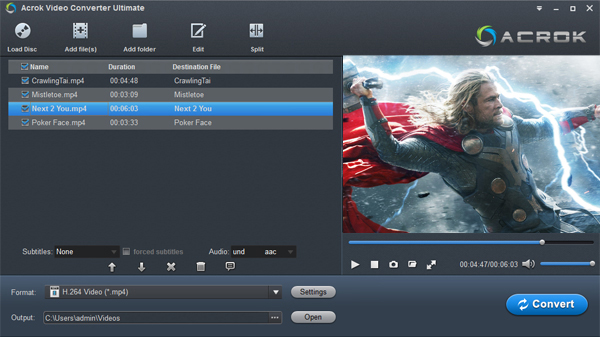
- For a VIDEO_TS folder: Select the folder. Acrok will scan it and show the main movie title.
- For individual VOB files: Select all the VOB files that belong to the same movie (e.g., VTS_01_1.VOB, VTS_01_2.VOB, etc.). Acrok will automatically merge them in the correct order.
Step 2 – Choose the Samsung TV Output Format
Click the “Format” drop‑down menu. Navigate to Device > Samsung and choose the preset that matches your TV. For example:
- “Samsung Smart TV (MP4, H.264 + AAC)” – works on 99% of Samsung Smart TVs
- If you have a 4K Samsung TV, you can also select “Samsung 4K QLED TV (H.264 + AAC)”
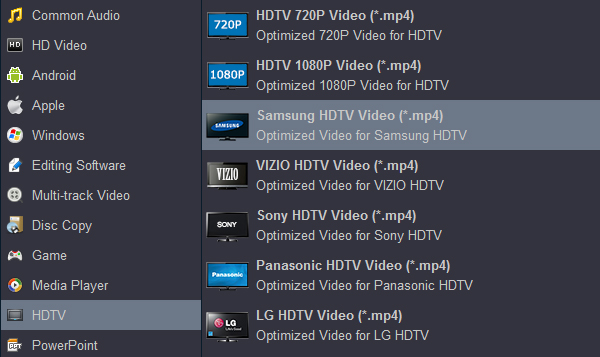
If you are unsure, simply choose Format > MP4 > H.264 + AAC – this matches the Samsung Smart TV best playback video format.
Step 3 – Adjust Audio and Subtitle Settings (Optional)
Click the “Settings” button next to the output format.
- Audio: Set encoder to AAC (48kHz, stereo or 5.1). For surround sound, you can choose AC3 if your Samsung TV supports it.
- Subtitle: If your VOB has subtitle streams, select your preferred language. Check “Hardcode” if you want subtitles permanently on screen.
Step 4 – Select Output Folder
In the “Output” field, choose a destination folder on your computer. A 90‑minute DVD movie converted to MP4 will be about 1–2 GB.
Step 5 – Start Conversion
Click the “Convert” button. Acrok will decode the VOB files, combine them, encode to H.264 + AAC, and produce a single MP4 file. GPU acceleration ensures the process is fast.
Step 6 – Copy to USB and Play on Samsung TV
Once conversion is complete, copy the MP4 file to your USB flash drive. Eject the USB drive safely, plug it into your Samsung Smart TV’s USB port. Open the “Source” menu, select “USB”, and navigate to your movie. Press play – you will now watch VOB movies on Samsung Smart TV smoothly, with full audio and (optionally) subtitles.
Why Not Use Free Converters?
Free tools like HandBrake, VLC, or online converters have major drawbacks for VOB conversion:
- HandBrake – Cannot automatically combine multiple VOB files into one movie without manual renaming. It also lacks Samsung‑specific presets, so you have to research codec settings yourself.
- VLC – Can convert VOB to MP4, but the process is slow, the interface is confusing, and it often produces audio sync issues.
- Online converters – Cannot handle large VOB files (often over 1GB per file). They also pose privacy risks and have no Samsung TV presets.
Acrok removes all these headaches. It is designed specifically for users who want a one‑click solution to convert VOB to Smart TV supported format without technical hassle.
Troubleshooting Common Issues
| Problem | Cause | Acrok Solution |
|---|---|---|
| Movie starts but stops after 5–10 minutes | You only converted one VOB file instead of all | Load the entire VIDEO_TS folder – Acrok merges all VOBs |
| No sound on Samsung TV | Original VOB uses MP2 or DTS audio | Convert audio to AAC or AC3 in Acrok’s settings |
| Subtitles do not appear | VOB subtitles are not automatically extracted | In Acrok, select the subtitle track and enable “Hardcode” or “Keep” |
| File is too large for USB | FAT32 format on USB drive | Reformat USB to exFAT or NTFS |
Conclusion
You do not have to abandon your collection of VOB files or DVD rips just because Samsung Smart TVs cannot play them natively. With Acrok Video Converter Ultimate, you can easily convert VOB to Smart TV supported format – specifically MP4 with H.264 video and AAC audio – which is the Samsung Smart TV best playback video format. Acrok is the ultimate VOB Converter for Samsung Smart TV because it combines multiple VOB files, handles DVD folders and ISO images, provides one‑click Samsung presets, converts audio to compatible codecs, and supports GPU‑accelerated conversion. As a complete TV Format Converter and format converter for Samsung TV, Acrok lets you watch VOB movies on Samsung Smart TV from a simple USB flash drive.
Stop struggling with incompatible formats. Download Acrok Video Converter Ultimate today and enjoy your entire DVD and VOB library on the big screen – no discs required.

Comments are closed