

You own a collection of 3D Blu‑ray discs but do not have a dedicated 3D Blu‑ray player. Your Smart TV is 3D‑capable (or even 2D only with conversion), yet playing those discs seems impossible. The good news is that you can absolutely watch 3D Blu‑ray movies on your Smart TV without any external player – all you need is a computer with a Blu‑ray drive and the right software. In this guide, we will show you how to rip and convert 3D Blu‑ray discs into the best video format supported by TV for flawless USB or network playback. We strongly recommend Acrok Video Converter Ultimate as the ultimate 3D Blu‑ray Ripper for TV, and we will explain why it outshines all alternatives.
Why You Don’t Need a Dedicated 3D Blu‑ray Player
A standalone 3D Blu‑ray player is convenient, but it is not the only way. Your Smart TV (Samsung, Sony, LG, Panasonic, etc.) can play 3D video files directly from a USB drive or external hard drive – provided the files are in a compatible format. By ripping your 3D Blu‑ray discs to a digital file, you can:
- Watch 3D movies without buying extra hardware.
- Store your entire 3D collection on a single USB drive.
- Play 3D content on multiple TVs in your home.
- Avoid disc scratching or wear.
The challenge is that 3D Blu‑ray discs use the MVC (Multiview Video Coding) format, which no TV supports natively. You need a TV Format Converter that can decode MVC and transform it into a standard 3D format like Side‑by‑Side (SBS) or Top‑and‑Bottom (TAB), packed inside a universal container such as MP4 or MOV.
The Best 3D Blu‑ray Ripper for TV – Acrok Video Converter Ultimate
After evaluating several 3D ripping tools, Acrok Video Converter Ultimate stands out as the most powerful and user‑friendly 3D Blu‑ray Ripper for TV. It is also a complete format converter for TV that handles all video conversion needs.
Why Acrok Video Converter Ultimate?
Here are the key reasons why Acrok is the ideal choice to convert 3D Blu‑ray to 3D MP4 or convert 3D Blu‑ray to 3D MOV for direct playback on your Smart TV.
1. Direct 3D Blu‑ray Decryption and Ripping
Acrok can directly read and decrypt protected 3D Blu‑ray discs (including those with AACS and BD+ encryption). You do not need any third‑party decryption tools. Simply insert your 3D Blu‑ray disc into your computer’s Blu‑ray drive, and Acrok will load the main movie or full disc.
2. Output to the Best Video Format Supported by TV
What is the best video format supported by TV for 3D playback? After years of testing, the most reliable combination is:
- Container: MP4 or MOV
- Video codec: H.264 (highly compatible) or H.265 (for 4K 3D)
- 3D arrangement: Side‑by‑Side (SBS) or Top‑and‑Bottom (TAB)
- Audio codec: AAC or AC3 (Dolby Digital)
Acrok includes device‑specific presets for all major TV brands (Samsung, Sony, LG, Panasonic, Vizio, etc.). When you select your TV model, Acrok automatically chooses the best video format supported by TV for 3D playback, including resolution, bitrate, and audio settings.
3. Convert 3D Format to TV Supported Format
Acrok reads the MVC stream from your 3D Blu‑ray and can convert 3D format to TV supported format in multiple ways:
- Full SBS (1920×1080 per eye) – best quality, requires higher bitrate
- Half SBS (960×1080 per eye) – smaller file size, still excellent on most TVs
- Full TAB (1920×1080 top/bottom)
- Half TAB (1920×1080 with half resolution)
You can also choose to preserve the original frame‑packed MVC for future use, but for direct TV playback, SBS or TAB is the standard.
4. Convert 3D Blu‑ray to 3D MP4 and 3D MOV
Acrok makes it effortless to convert 3D Blu‑ray to 3D MP4 – the most widely supported container on Smart TVs from Samsung, Sony, LG, and TCL. If you prefer Apple ecosystem compatibility, you can convert 3D Blu‑ray to 3D MOV for playback on Apple TV or via AirPlay to your Smart TV. Both outputs retain full 3D depth and synchronisation.
5. GPU Accelerated Conversion
Converting a full 3D Blu‑ray (often 40–50GB) to a compressed 3D MP4 can take hours without hardware acceleration. Acrok leverages NVIDIA CUDA, AMD, and Intel Quick Sync to speed up the process by up to 6×. A complete 3D movie can be ready in 30–40 minutes.
6. Lossless Copy of Main Movie
If you only want the main feature (without menus, trailers, or extras), Acrok can automatically detect the longest title. You can also manually select specific chapters, audio tracks (DTS‑HD, TrueHD, AC3), and subtitle languages.
7. Batch Conversion for Multiple Discs
Rip and convert an entire 3D Blu‑ray series (like Avatar, Hugo, or Gravity) in batch mode. Add all discs or ISO files, set the same output parameters, and let Acrok work overnight.
8. Additional Features for Perfect TV Playback
- Trim – Remove opening FBI warnings or end credits.
- Crop – Eliminate black bars for full‑screen 3D.
- Merge – Combine multiple titles into one file.
- Add subtitles – Hardcode or embed SRT/PGS subtitles.
Step‑by‑Step Guide: Convert 3D Blu‑ray to USB for Smart TV
Follow these steps to watch any 3D Blu‑ray on your Smart TV without a 3D Blu‑ray player:
What You Need
- A computer with an internal or external Blu‑ray drive (BD‑ROM or BD‑RE)
- Acrok Video Converter Ultimate installed (Windows or Mac)
- A USB 3.0 drive formatted as exFAT or NTFS (FAT32 cannot hold files over 4GB)
- Your 3D Blu‑ray disc
Step 1 – Insert the Disc
Put your 3D Blu‑ray disc into the Blu‑ray drive. Launch Acrok Video Converter Ultimate.
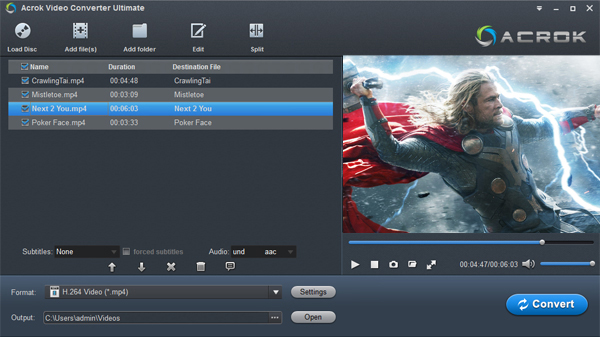
Step 2 – Load the Disc
Click “Add Files” and select your Blu‑ray drive. Acrok will scan the disc and list all titles. Choose the main movie (usually the longest title) or select specific chapters.
Step 3 – Choose Output Format (3D MP4 or MOV)
Click the format drop‑down menu: select MP4 profile under Common Video or 4K Video category.
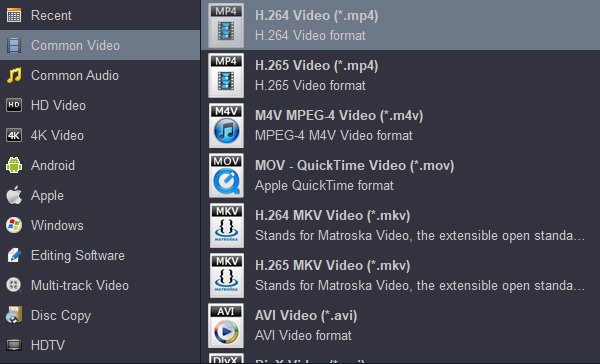
If your TV supports H.265 (HEVC) and you want smaller file sizes, select the H.265 version. Acrok automatically sets the best video format supported by TV for your specific model.
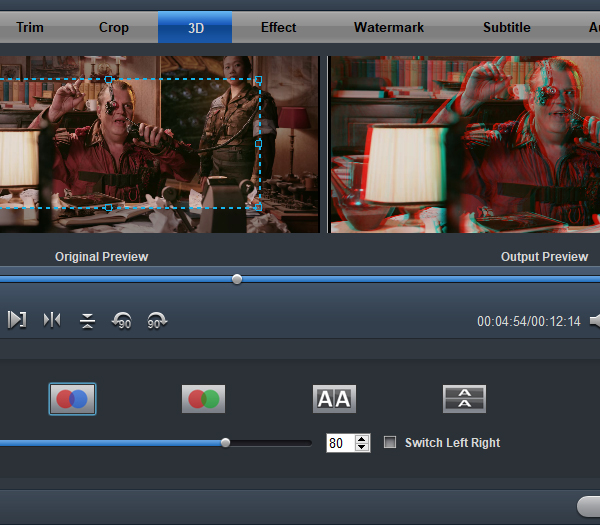
Step 4 – Adjust 3D Settings (Important)
Click the “Edit” button next to the output format. Under “3D” options:
- Input 3D mode: Select “Frame‑packed MVC” (for 3D Blu‑ray).
- Output 3D mode: Choose “Side‑by‑Side (Half)” or “Top‑and‑Bottom (Half)” – both work universally.
- Depth: Leave at default or adjust slightly if needed.
Step 5 – Select Audio and Subtitles
In the same settings window, choose an audio track:
- AC3 (Dolby Digital 5.1) – best compatibility with TV USB playback.
- AAC – if you want stereo or multi‑channel AAC (supported on newer TVs).
- For subtitles, select your preferred language. You can hardcode them into the video or keep them as a separate track.
Step 6 – Start Conversion
Choose an output folder on your computer (ensure enough free space – 10–20GB for half‑SBS, 30–40GB for full‑SBS). Click “Convert”. Acrok will use GPU acceleration to finish quickly.
Step 7 – Copy to USB and Enjoy
Once conversion is complete, copy the output 3D MP4 or MOV file to your USB drive. Plug the USB into your Smart TV, open the media player, select the file, and put on your 3D glasses. Your TV should automatically recognise the SBS/TAB content and combine it into a single 3D image. If not, manually set the TV’s 3D mode to “Side‑by‑Side” or “Top‑and‑Bottom”.
What About Other 3D Sources?
Acrok is not only a 3D Blu‑ray Ripper for TV – it also works with:
- 3D ISO files (full disc images)
- 3D MKV files from other sources
- 2D Blu‑ray discs (with 2D to 3D conversion feature)
- 3D home videos from dual‑lens cameras
Why Not Use Free Software?
Free tools like MakeMKV or HandBrake have serious limitations for 3D Blu‑ray:
- MakeMKV can rip 3D Blu‑ray to MVC MKV, but no Smart TV can play that format directly. You would still need another tool to convert MVC to SBS.
- HandBrake does not support 3D Blu‑ray or MVC decoding at all. It sees only the 2D base layer.
- Other free converters lack GPU acceleration, making a 3‑hour conversion take 8–10 hours.
Acrok combines decryption, ripping, 3D conversion, and TV‑optimised encoding in one seamless workflow – saving you hours of trial and error.
Conclusion
You do not need a dedicated 3D Blu‑ray player to watch your 3D Blu‑ray collection on a Smart TV. With a computer, a Blu‑ray drive, and Acrok Video Converter Ultimate, you can rip and convert any 3D disc into the best video format supported by TV – typically 3D MP4 or 3D MOV with SBS arrangement and AAC/AC3 audio. Acrok is the ultimate TV Format Converter that handles everything from decrypting the disc to outputting a USB‑ready file. Its ability to convert 3D format to TV supported format, along with GPU acceleration and device presets, makes it the only 3D Blu‑ray Ripper for TV you will ever need.
Start building your digital 3D library today. Download Acrok Video Converter Ultimate and enjoy cinema‑quality 3D on your Smart TV – no additional hardware required.

No responses yet